How to Upload PDF to URL

Lina
Chief Editor
Dec 05, 2024
2 min(s) read
When you want to share a PDF file, one of the easiest ways is by uploading it to a URL. This makes it easier for everyone to access the document without having to download it. Plus, you can even set the expiration date of the link so that the document can't be accessed after a specified amount of time in some services.
Google Drive
You can upload PDF to Google Drive and get a URL to share it.
- Login to your Google Drive account.
- Click
File uploadoption from the top leftNewbutton to upload your PDF:

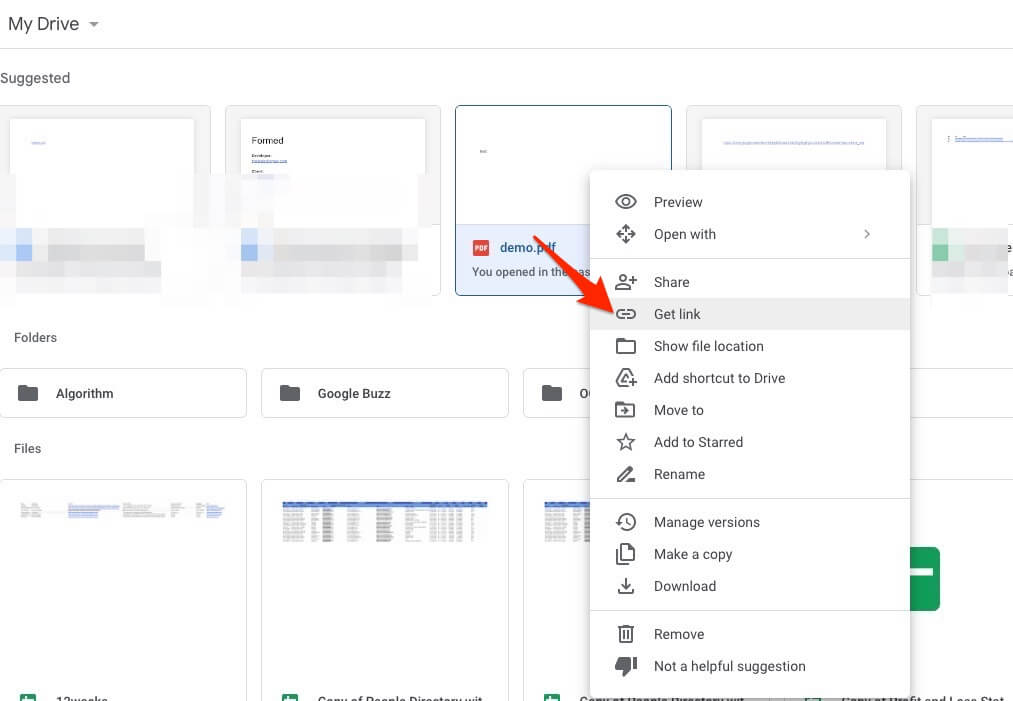
- Right-click the file uploaded and select
Get link:
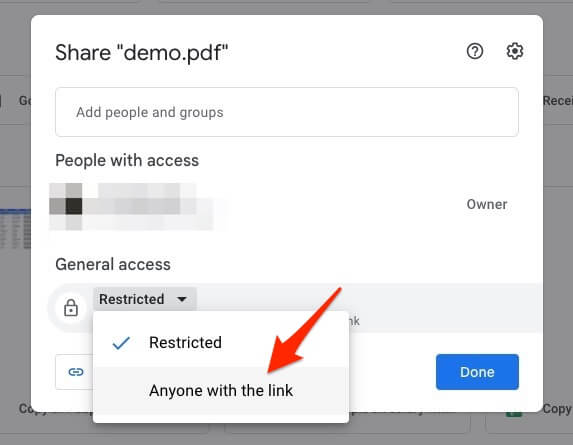
- In the access control panel, make sure you select
Anyone with the link. So that you can share the PDF with anyone:
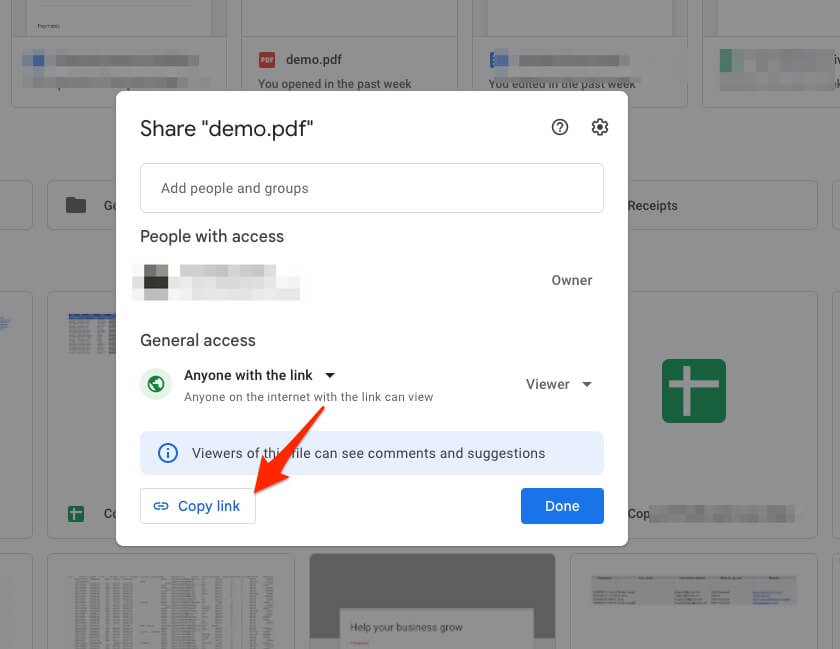
- Lastly click the
Copy linkand you will get a URL to the PDF uploaded:
Dropbox
You can also use Dropbox to upload PDFs to a URL.
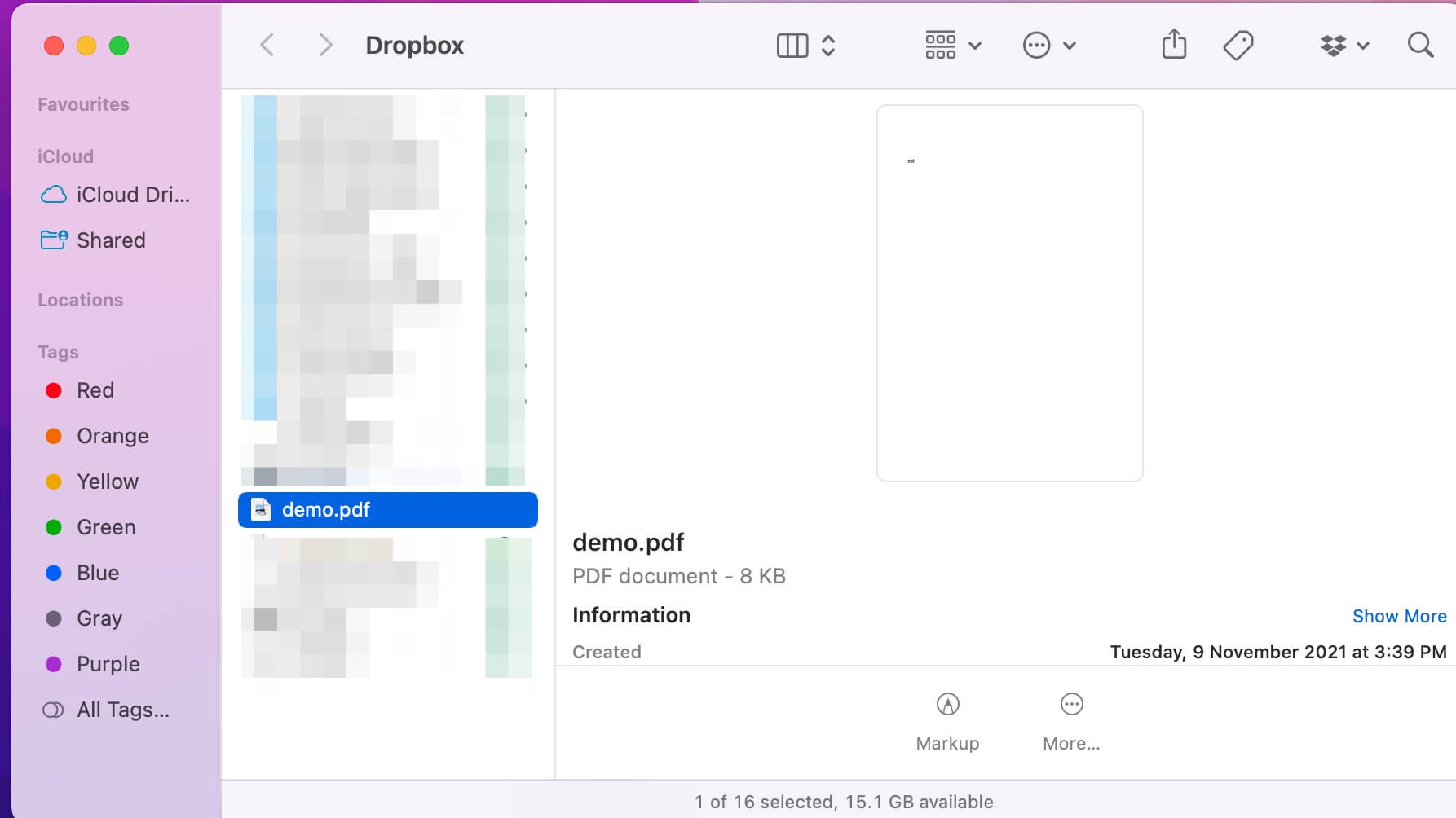
- Upload the PDF to your Dropbox folder:
- Right-click the file uploaded and select
Copy Dropbox Link:
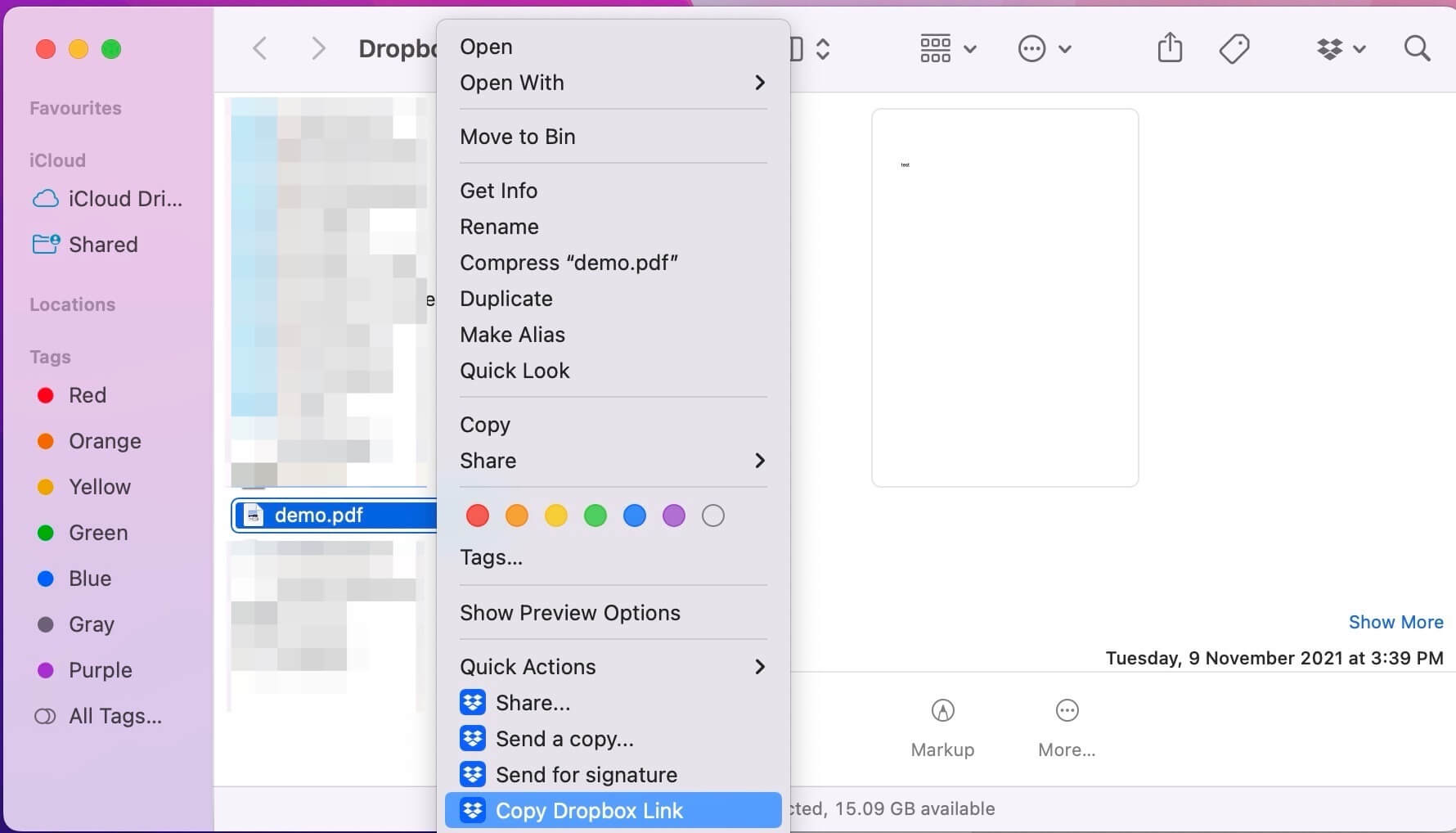
You will get a URL to the PDF and you can share it with anyone.
Introducing StaticFast
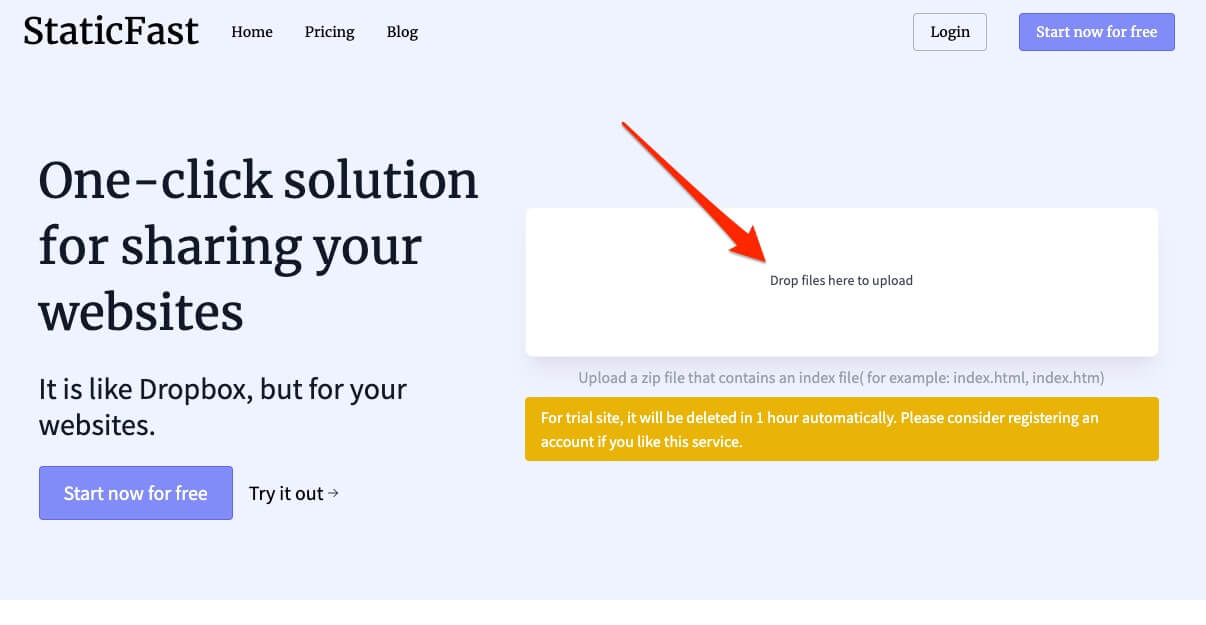
If you're looking for a PDF to URL service that does not require you to sign up for any services above and is easy to use. You can try out https://staticfast.com/. Drag-n-drop your PDF to the uploader and you will get a URL instantly: