
How to Combine SVG to PDF: A Step-by-Step Guide

Lina
Chief Editor
Scalable Vector Graphics (SVG) files are commonly used for their resolution-independent quality and small file size. However, when you need to share multiple SVG images together, combining them into a single PDF is a more efficient and professional way to present them. Whether you’re creating a portfolio, a technical document, or a presentation, learning how to combine SVG to PDF will make your task easier and more streamlined.
In this guide, we’ll walk you through the best methods to combine SVG files into a PDF, covering different tools and platforms.
How to Combine SVG to PDF
Here are the most effective ways to merge SVG files into a single PDF, whether you’re using Windows, macOS, or online tools:
1. Using Preview on macOS
macOS users can take advantage of the Preview app to combine SVG files into a PDF.
- Convert SVG to a Compatible Format: Since Preview doesn’t support SVG natively, you’ll need to convert the SVG files to a format like PNG or JPEG using an online converter such as CloudConvert.
-
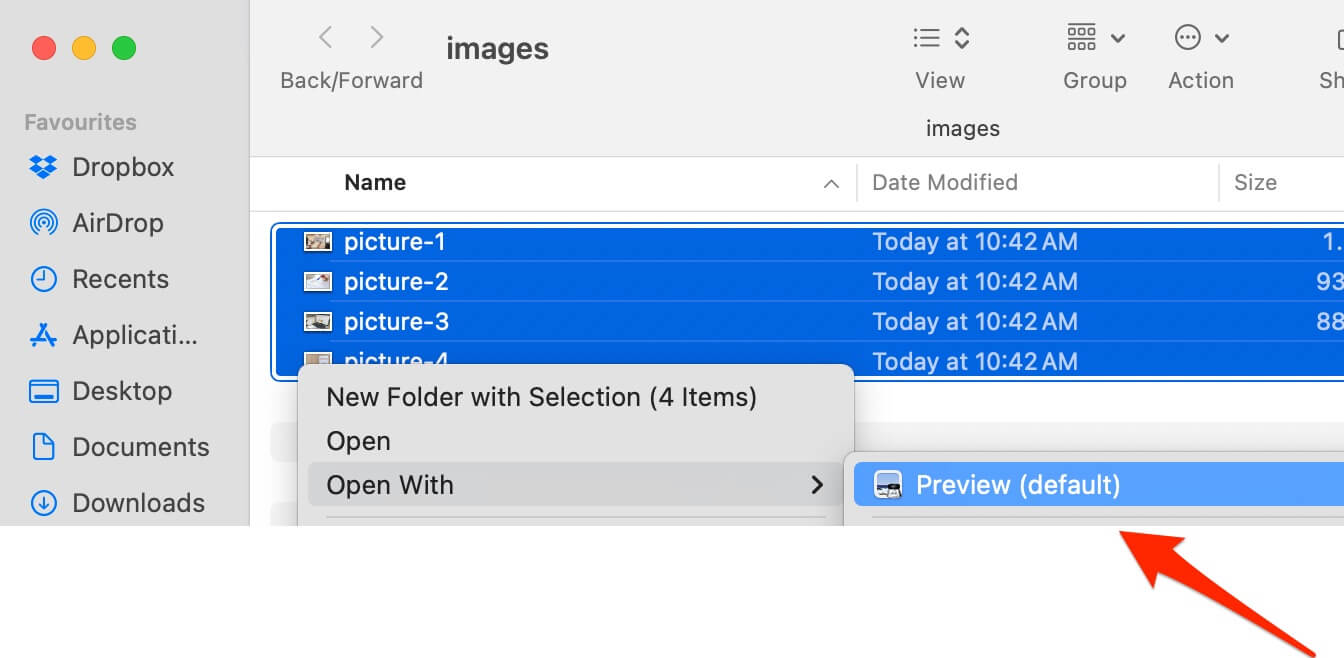
Open Converted Files in Preview: Once the SVG files are converted, select them, right-click, and choose Open With > Preview.
-
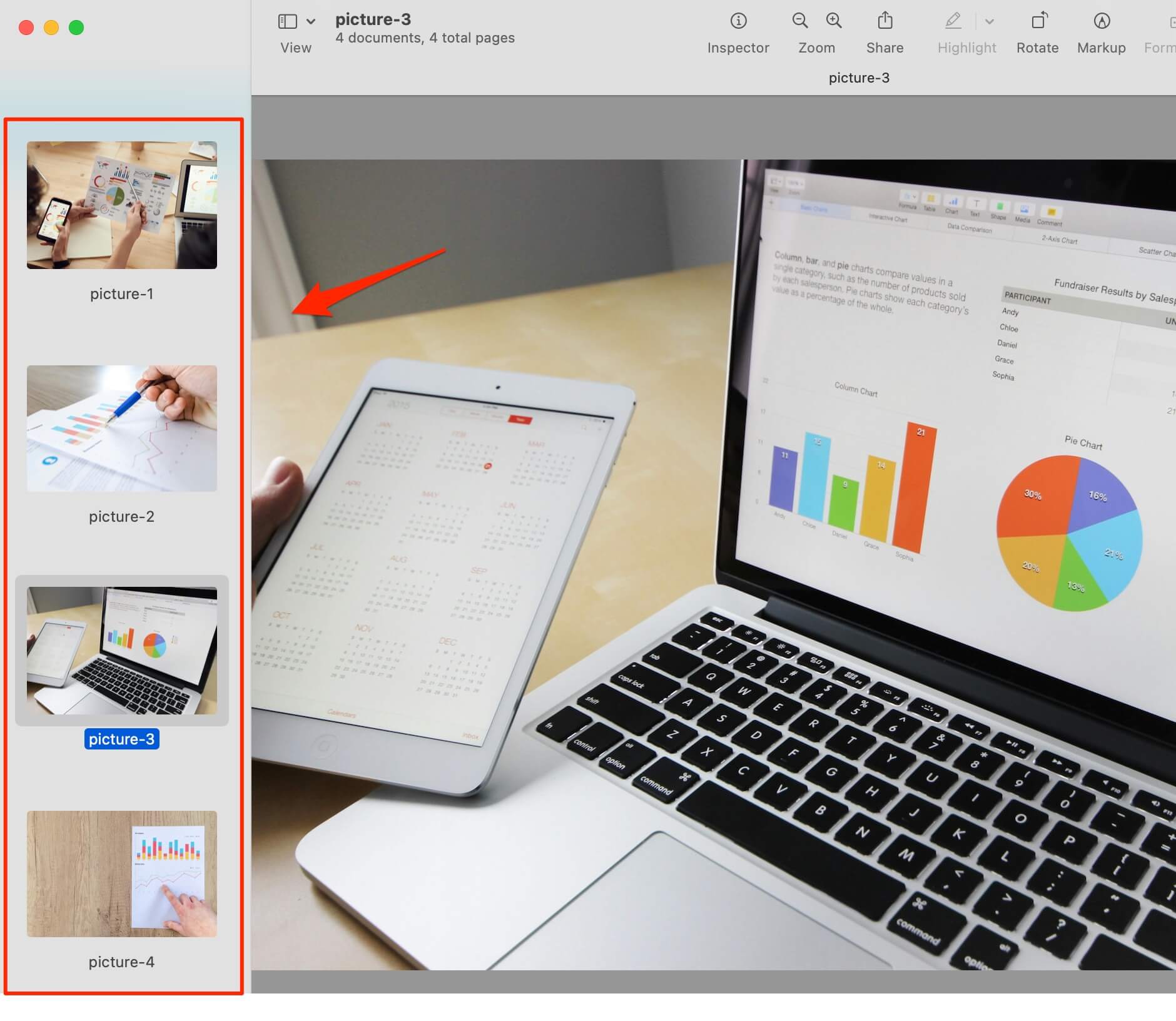
Reorder the Images: In the Preview sidebar, drag and drop the images to reorder them as needed.
-
Export as PDF:
- Go to File > Export as PDF.
- Name your file and choose a location to save the PDF.

2. Using Online Tools
Online tools provide a quick and convenient way to combine SVG files into a PDF without installing software.
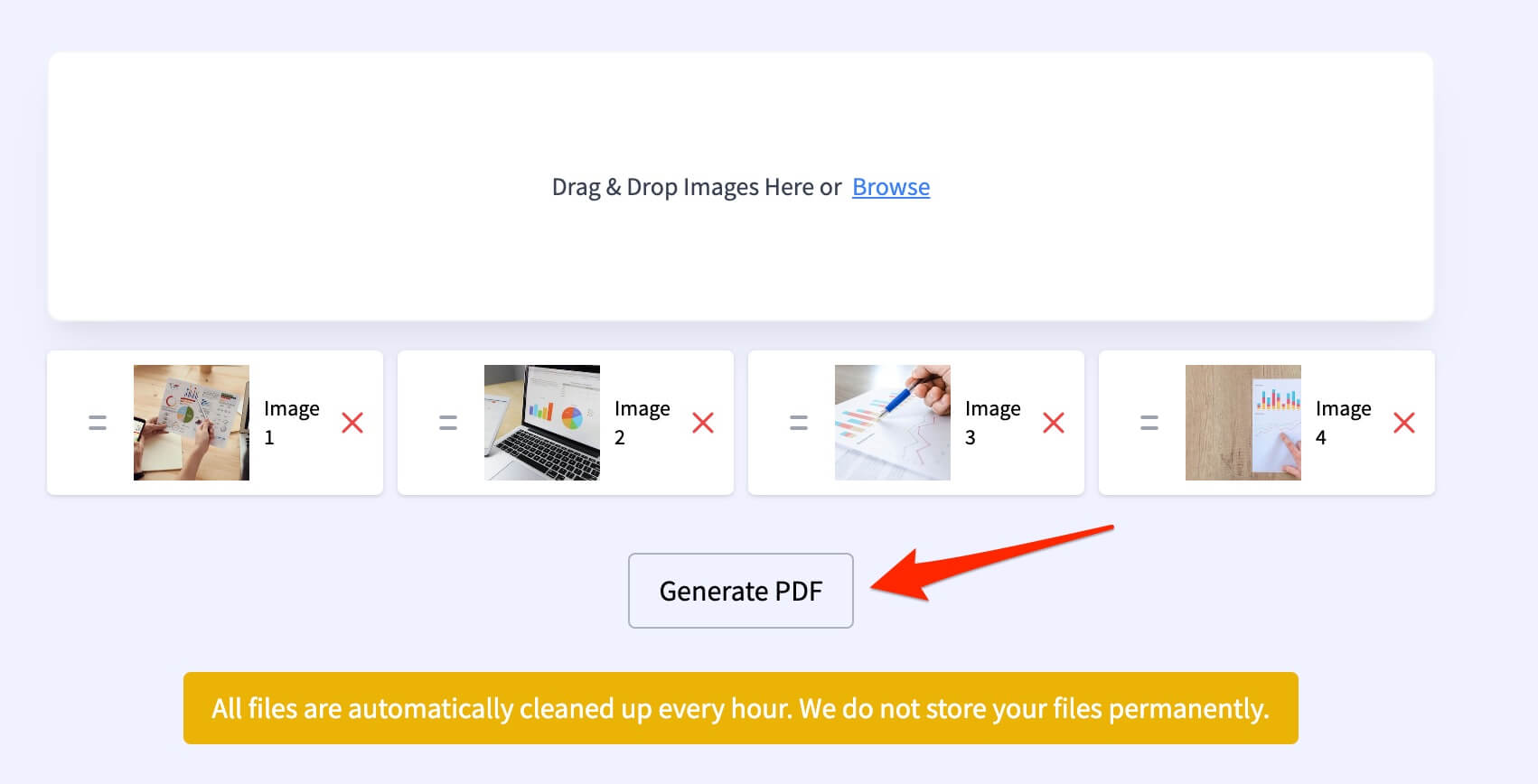
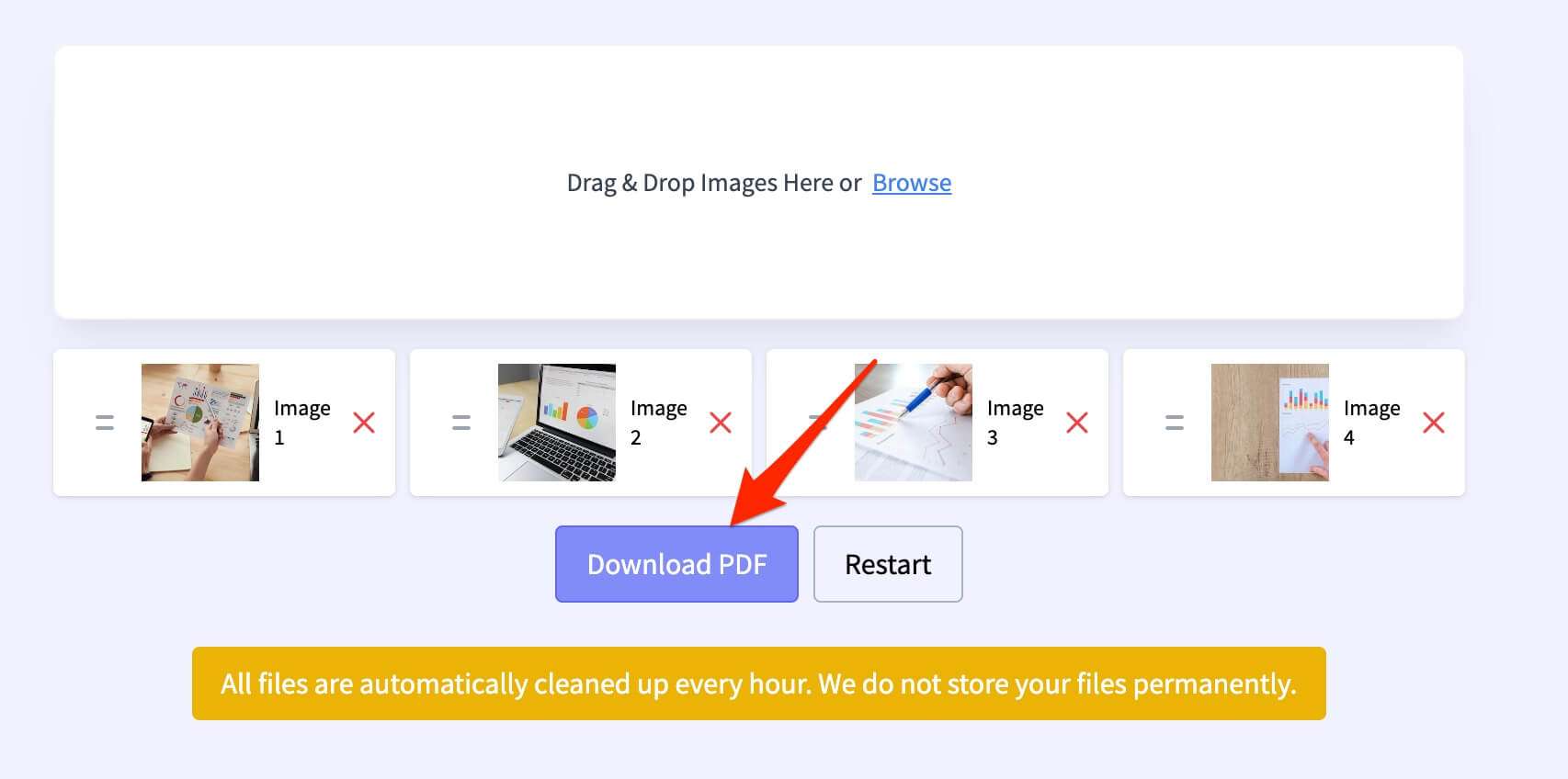
Steps to Combine SVG to PDF Using StaticFast:
- Visit StaticFast SVG to PDF Combiner.
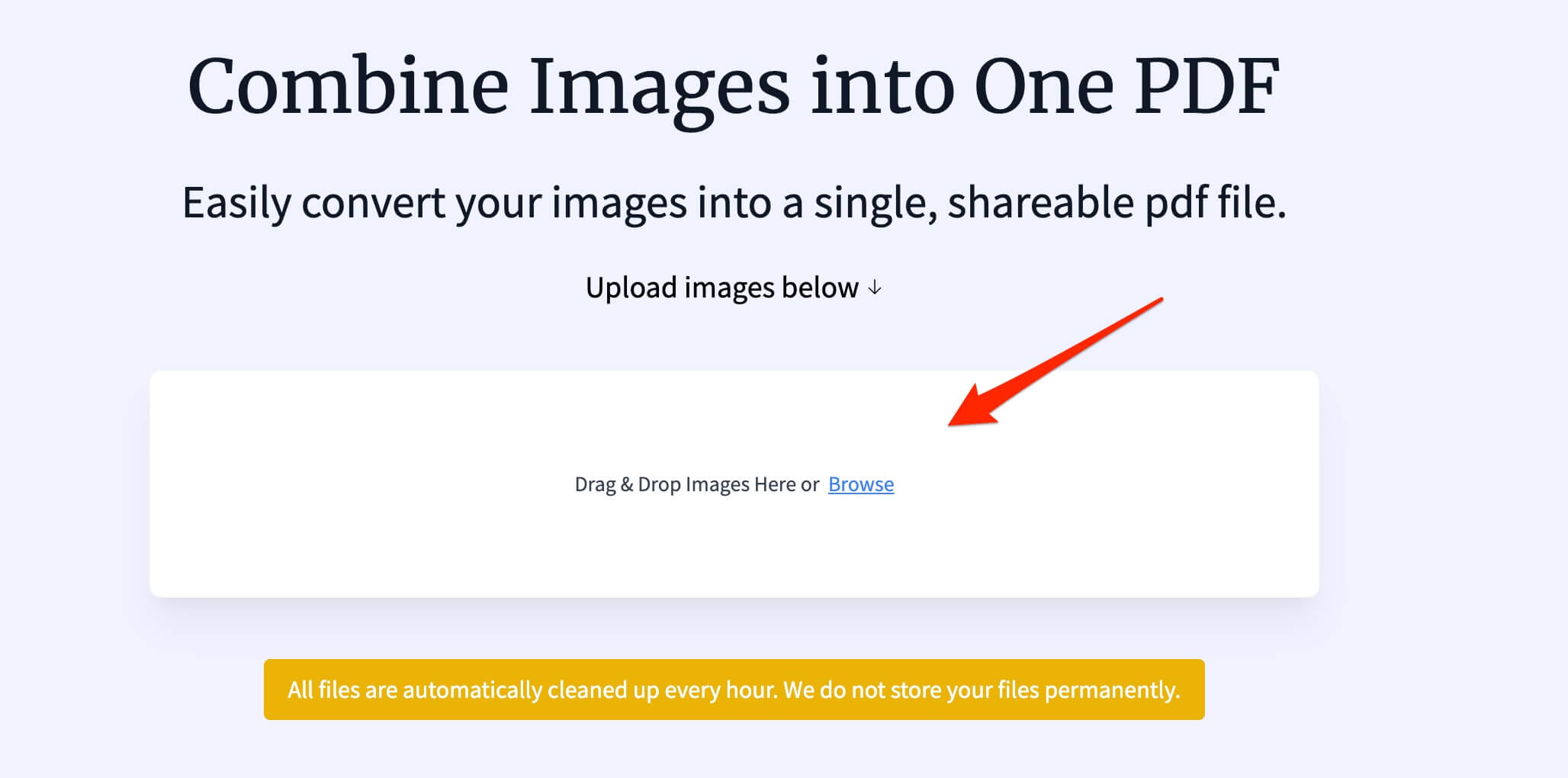
- Click browse and select the SVG images you want to combine.
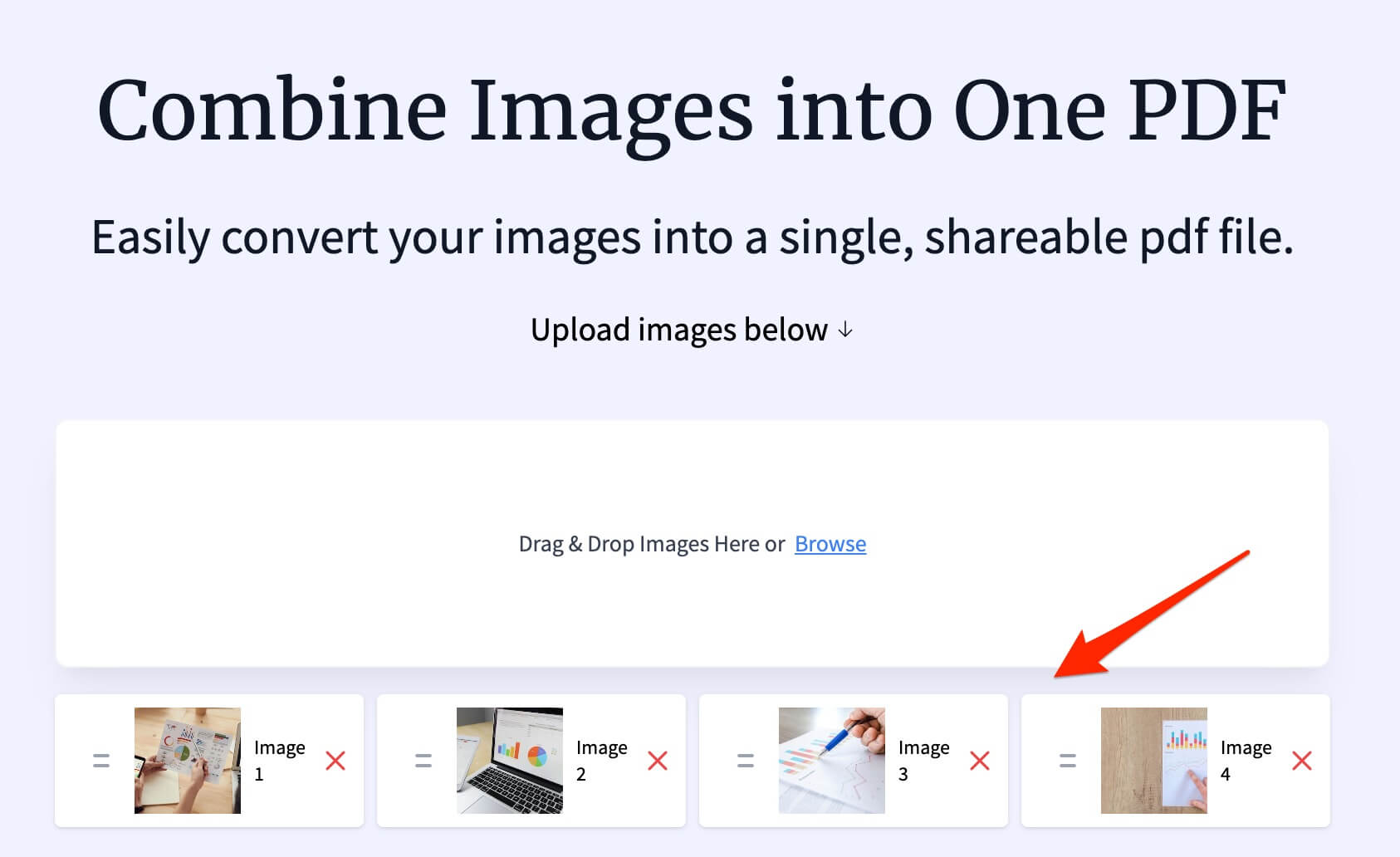
- Arrange the SVG files in the desired order by dragging and dropping them.
- Click Generate PDF to generate the PDF.
- Download the PDF to your device.
Why Combine SVG to PDF?
- Professional Presentation: A PDF offers a polished, organized way to present your SVG files, especially for portfolios or technical documentation.
- Ease of Sharing: A single PDF file is easier to share than multiple SVG files.
- Universal Compatibility: PDFs are compatible across all devices and operating systems, ensuring that your images are viewable by everyone.
Tips for a High-Quality PDF
- Use High-Quality SVG Files: Ensure your SVG files are well-designed and of high quality to maintain clarity in the PDF.
- Optimize PDF Size: If your PDF file becomes too large, use a compression tool to reduce its size without losing quality.
- Check the Order: Double-check the order of your SVG files before finalizing the PDF to ensure they appear in the correct sequence.
FAQs
Q: Can I combine SVG files into a PDF on Linux?
A: Yes, you can use tools like Inkscape or command-line utilities like ImageMagick to combine SVG files into a PDF on Linux.
Q: Are online tools safe for sensitive SVG files?
A: Reputable online tools delete files after processing. However, for sensitive data, you may prefer offline methods.
Q: Can I edit the PDF after combining SVG files?
A: Yes, you can use PDF editing software like Adobe Acrobat or free tools like PDFescape to make changes to your combined PDF.
Conclusion
Learning how to combine SVG to PDF is a simple process that makes sharing and presenting your SVG files more efficient. Whether you use built-in tools, macOS Preview, or online platforms, this guide provides you with all the methods you need to create a high-quality PDF.
For more helpful tips and tutorials on file management and productivity, check out our other articles!