How to Upload a PDF to Google Drive (Desktop, Phone, and Sharing)
StaticFast Team
Uploading a PDF to Google Drive takes four clicks on a computer and three taps on a phone. The part that trips people up comes after: the person you send the link to sees "You need access", or a page that is not quite the PDF they expected.
This guide covers both halves. First the upload, on desktop and on your phone. Then the sharing settings that decide who can open the file, and the cases where a Drive link is the wrong tool. If you are still choosing where your PDF should live at all, our guide to hosting a PDF on your website compares the options.

Upload a PDF to Google Drive on a Computer
Open Google Drive in any browser and sign in with your Google account. You do not need to install anything.
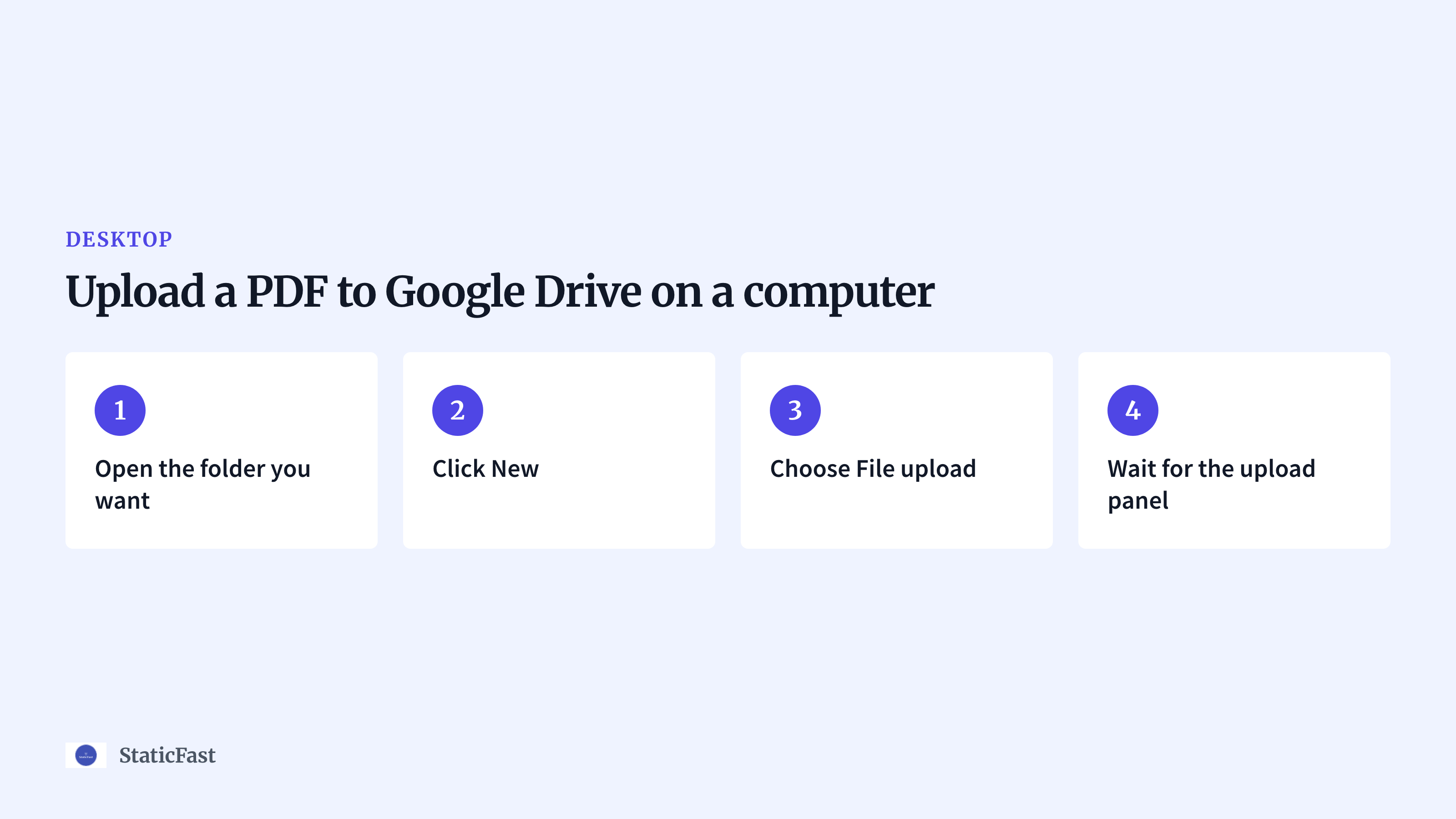
- Open the folder you want: Click
My Drivein the left sidebar, then open the folder the PDF belongs in. Uploading into the right folder now saves you moving it later. - Click New: The
Newbutton sits at the top of the left sidebar. - Choose File upload: Pick
File upload, select the PDF on your computer and clickOpen. To upload a whole folder of PDFs at once, pickFolder uploadinstead. - Wait for the upload panel: A small panel in the bottom-right corner shows progress. When it says the upload is complete, the PDF appears in the folder.
Drag and drop is faster if the folder is already open. Drag the PDF from your desktop or file manager onto the Drive window and let go. Drive highlights the folder you are dropping into, so check the name before you release.
Drive keeps the PDF exactly as it is. It does not convert it into a Google Doc, so the layout, fonts and page breaks stay intact.
Upload a PDF from an iPhone or Android Phone
On a phone you need the Google Drive app, signed in to the same account.
- Open the Drive app and tap the
+button in the bottom-right corner. - Tap
Upload. - Pick the PDF. On an iPhone, Drive opens the Files app, so browse to
Downloadsor wherever the PDF was saved. On Android, pick it from the file picker.
There is a second route that skips the Drive app's menus. When you have the PDF open in another app, such as Mail, Files or your browser's downloads, tap the share icon and choose Drive. Drive asks which account and folder to save to, then uploads it.
Keep the app open until the upload finishes. On a slow mobile connection, a large scanned PDF can take a minute, and switching away may pause it.
Put the PDF in a Folder
Folders keep a shared Drive from turning into a list of files called scan0012.pdf.
- Click
New, thenNew folder, type a name and clickCreate. - Drag the PDF onto the folder, or right-click the PDF, choose
Organize, thenMove, and pick the folder.
A folder can be shared the same way a file can. Share the folder once and everything you put in it later inherits the same access, which is handy for a team that receives a new PDF every week.
Share the PDF: General Access, Viewer and Commenter
Uploading a file does not share it. Every new upload starts private, so the next step decides who can open it.
Right-click the PDF and choose Share, or open it and click the Share button at the top right. The dialog has two parts.
People with access is for named people. Type an email address, pick a role and click Send. Only those accounts can open the file, and they have to be signed in to Google to do it.
General access is for everyone else. It has two settings:
Restricted: only the people listed above can open the link. Anyone else who clicks it sees a "You need access" page and a button to request it.Anyone with the link: anyone who has the link can open the PDF without a Google account.
Next to each, a role decides what people can do:
Viewercan read, and by default download and print.Commentercan also add comments in Drive's preview.Editorcan rename, move, replace or delete the file. Keep this for co-workers you trust.
Click Copy link and paste it wherever you need it. If you only need the link and not the folder setup, the short version of these steps is in our guide to uploading a PDF to a URL.
When someone opens the link, they do not get the PDF file itself. They get Drive's preview page: the PDF in a viewer, with Drive's toolbar, a download button and, if they are signed in, the option to add it to their own Drive.
Where a Drive Link Falls Short
For sending a PDF to colleagues or a client, a Drive link is fine. It gets awkward when the PDF is meant for the public: a menu, a flyer, an event program, or anything behind a printed QR code.
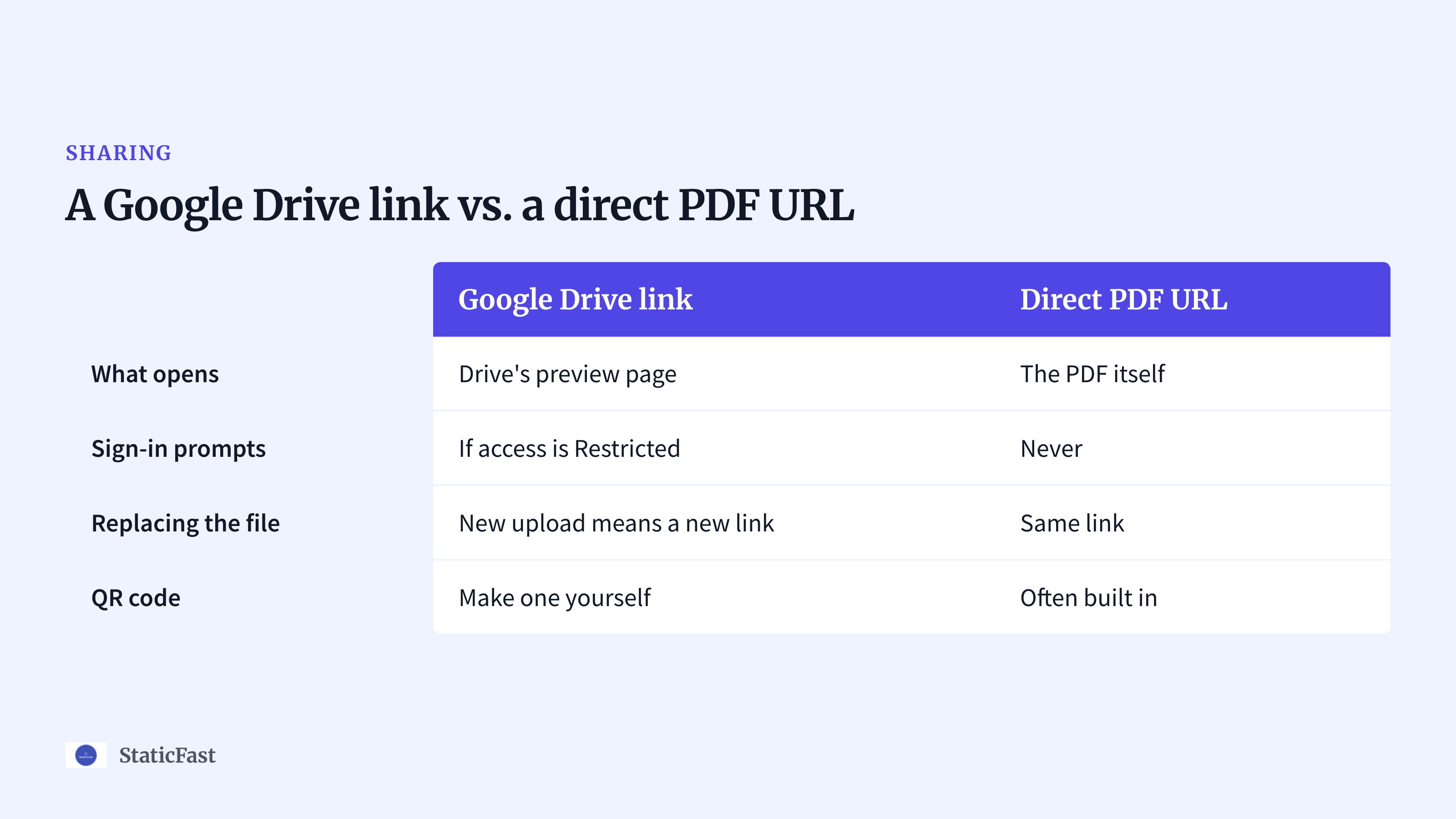
| Google Drive link | Direct PDF URL | |
|---|---|---|
| What opens | Drive's preview page | The PDF itself |
| Sign-in prompts | If access is Restricted | Never |
| Replacing the file | New upload means a new link | Same link |
| QR code | Make one yourself | Often built in |
The preview is not the PDF. On a phone, Drive's preview can show a banner asking people to open the Drive app. It works, but it is one more screen between a diner and the menu.
One wrong setting locks people out. If the file is left on Restricted, every stranger who scans the code lands on "You need access". You will not know until someone tells you.
Download and print are on by default. To turn them off, open Share, click the gear icon and untick the option that lets viewers and commenters download, print and copy. That stops casual downloads; it does not stop a screenshot.
Replacing the file can break the link. If you delete the old PDF and upload a new one, the new file gets a new link, and every QR code printed with the old one now goes to an error page. Drive does have a fix: right-click the file, open File information, choose Manage versions, then Upload new version. That keeps the link. Most people do not know it exists, and anyone else with Editor access can still delete the file.
If you were hoping to edit the PDF's text inside Google's apps instead, that is a different job. Our guide to getting a PDF into Google Docs covers it.
Introducing StaticFast
If the PDF is going on a printed QR code, a website button or a social post, a link that opens the PDF itself is the better tool. That is why we built StaticFast as a Google Drive alternative for public PDFs.
Drag and drop the PDF and you get a public URL and a QR code for it. People open it in their browser with no sign-in and no access settings to get wrong. When the PDF changes, you re-upload it and the link and QR code stay the same. You can also password-protect a PDF and see its views and downloads.
Solo is $9 a month for 2 PDFs and up to 20 MB of storage. Growth is $19 a month for 5 PDFs and up to 100 MB. StaticFast is not a file cabinet, so for storing and sharing documents with your team, keep using Drive.
FAQs
Q: How do I upload a file to a Google Drive link?
A: Open the shared folder link. If the owner gave you Editor access, click New, then File upload, or drag the file into the folder. If you only have Viewer access, the upload options are not there, so ask the owner to change your role.
Q: Can you edit a PDF in Google Drive?
A: Not directly. Drive previews PDFs and lets commenters add comments. To change the text, right-click the PDF and choose Open with, then Google Docs. Drive creates an editable copy, but complex layouts, columns and images often shift in the conversion.
Q: How do I create a folder in Google Drive?
A: Click New, then New folder, name it and click Create. In the phone app, tap +, then Folder.
Q: How do I convert a Google Drive document into a PDF?
A: Open the Google Doc and click File, then Download, then PDF Document (.pdf). The PDF saves to your computer. Upload it back to Drive with New, then File upload, if you want a copy there too.
Conclusion
Now you can upload a PDF to Google Drive from any device, share it with the right access setting, and spot the cases where a Drive link will let your readers down. A Drive link is fine for colleagues. For a printed QR code, use a link that opens the PDF itself.