How to Make a Brochure in Word, Google Docs or Canva
StaticFast Team
You need a brochure this week and there is no designer. Word or Canva is open, and the blank page is not the hard part. The hard part is the fold: which panel is the cover, which one the reader sees next, and which way the paper goes back into the printer.

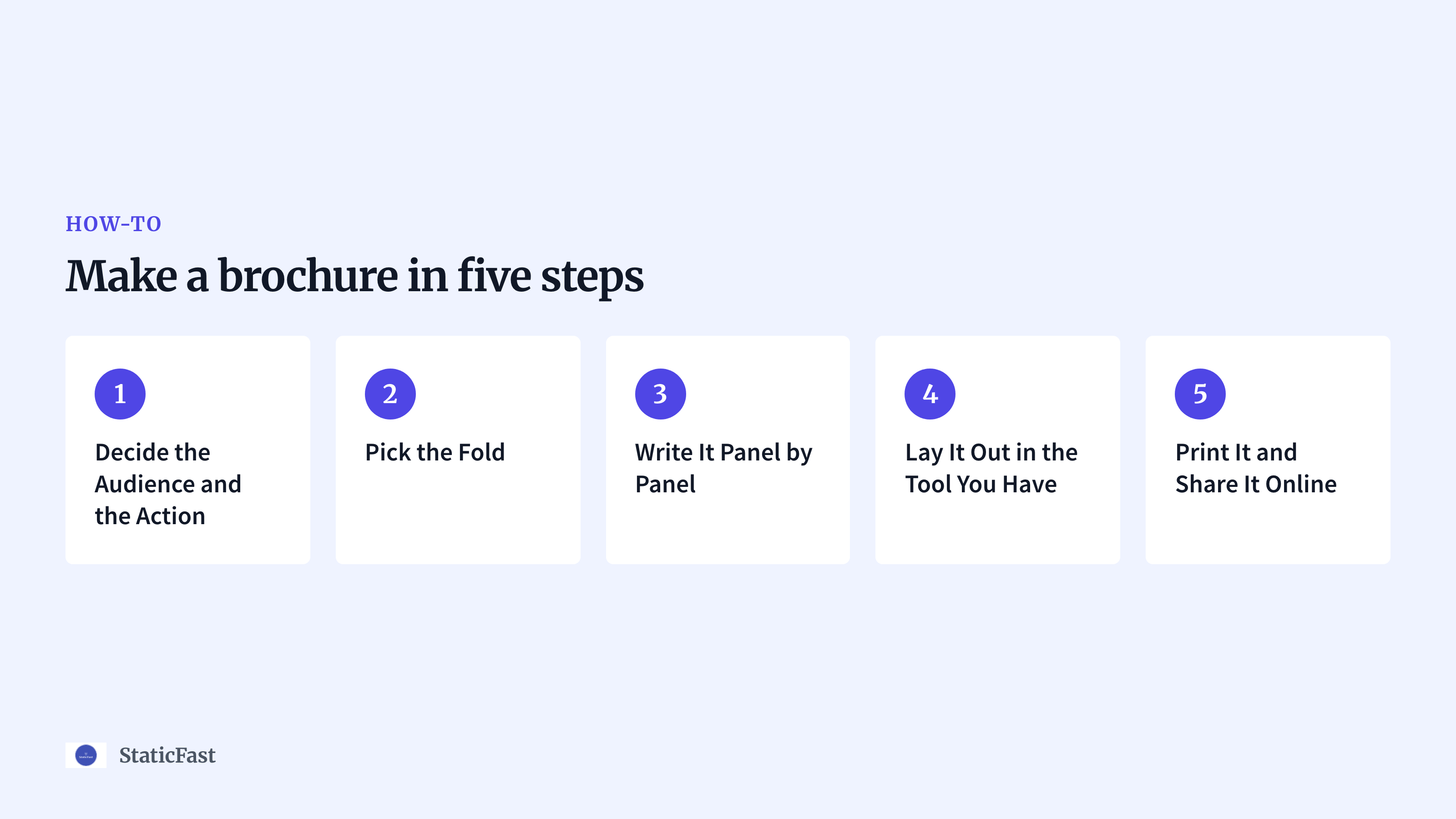
This guide shows how to make a brochure in five steps, from the first decision to a printed, folded copy. The last step puts the same PDF online, so the paper copy can carry a QR code and you can update the brochure after the print run. A brochure behind a link works the same way as a resume hosted online.
Step 1: Decide the Audience and the Action
Before you open a tool, write two lines on paper. Who picks this brochure up, and what should they do after reading it?
A brochure has one job: get the reader to do one thing. Book a table, call for a quote, come to the open day, scan a code. Choose that action now, because every panel either leads to it or takes space away from it.
Step 2: Pick the Fold
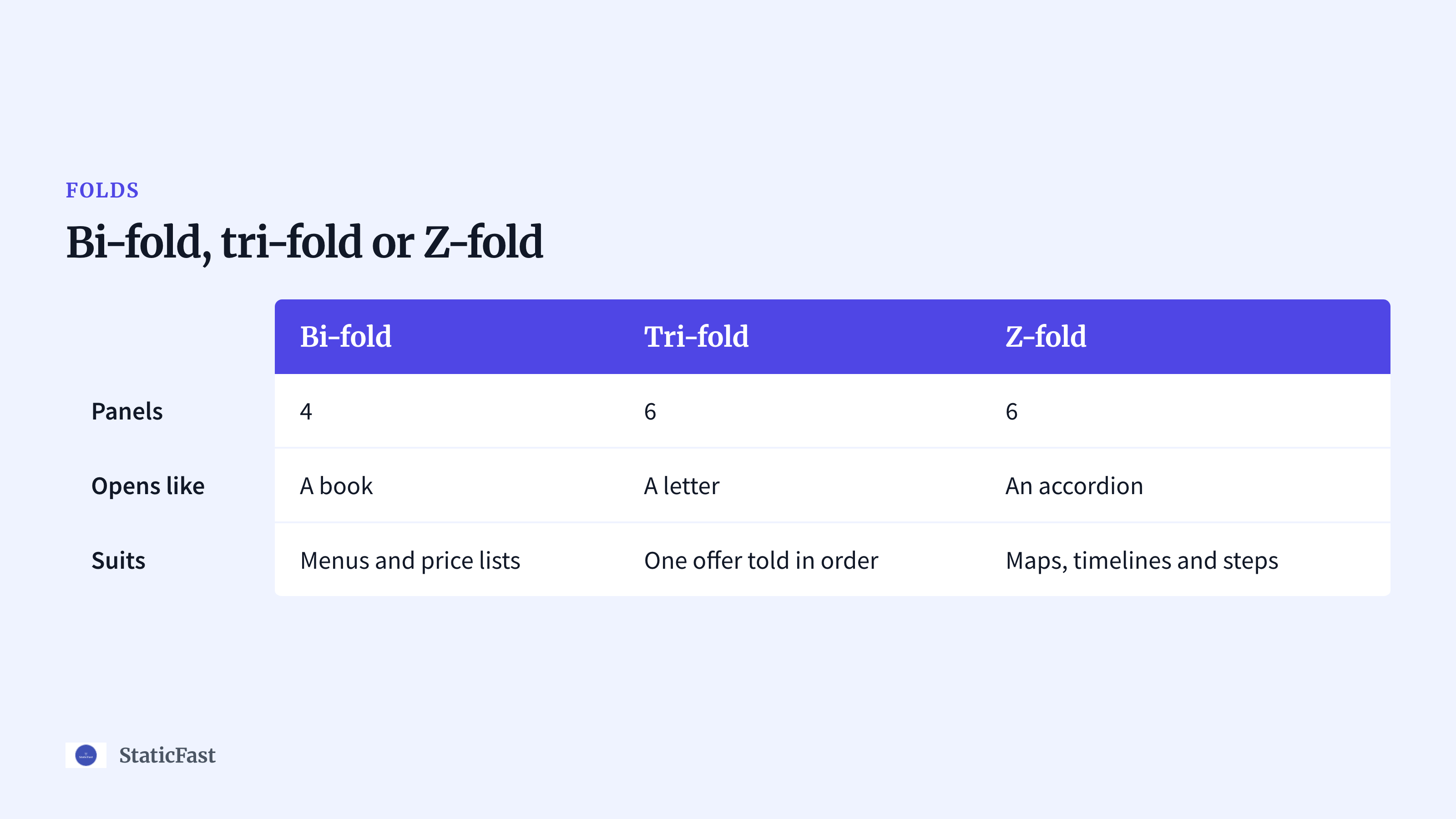
The fold decides how many panels you have and the order the reader meets them. Three folds cover almost every brochure made from one sheet of Letter or A4 paper.
| Bi-fold | Tri-fold | Z-fold | |
|---|---|---|---|
| Panels | 4 | 6 | 6 |
| Opens like | A book | A letter | An accordion |
| Suits | Menus and price lists | One offer told in order | Maps, timelines and steps |
The tri-fold is the most common, and it is the one with a catch. The sheet is printed in landscape with three panels on each side. On the outside of the sheet, reading left to right, the panels are the inside flap, the back cover and the front cover. So the front cover is the right-hand panel of the outside, not the left. A template puts it there for you. A layout you build yourself usually goes wrong here.
The other side of the sheet holds the three inside panels. When the reader opens the cover, they see the left inside panel next to the inside flap. Then they open the flap and see all three inside panels together.
Step 3: Write It Panel by Panel
Write the text before you design. Text written to fill a layout runs long, and a tri-fold panel on Letter paper is only about 3.67 inches wide.
For a tri-fold, give each panel one job:
- Front cover: A headline that names the reader's problem or your offer, one image, and your name or logo.
- Inside flap: The problem. This is the first panel the reader sees after the cover, so it has to earn the next unfold.
- Inside panels: The offer. Say what you do, what it includes or costs, and how it works. Let the three panels read left to right as one spread.
- Proof: One testimonial, one number or one photo of real work, on the last inside panel.
- Back cover: Contact details. Put the address, phone number, opening hours, website and the QR code from step 5 here.
End with the action from step 1, written as an instruction, on the last inside panel.
Step 4: Lay It Out in the Tool You Have
Three layout rules apply whichever tool you use.
- Fold lines: Keep text and faces away from the folds and the paper edge. A quarter inch (6 mm) of clear space on each side of a fold is enough.
- Flap width: Make the inside flap about 1/16 inch (2 mm) narrower than the other two panels, so it tucks in flat.
- Images: Use photos at 300 DPI at the size they will print. A picture copied from a website prints blurry.
Most home and office printers cannot print to the edge of the paper, so a full-colour background comes out with a white border. Design with a white margin, or use a print shop.
Microsoft Word
Word has brochure templates. Go to File, then New, type "brochure" into the template search box and pick a tri-fold. The template is two pages with three columns each. Page one is the outside of the sheet and page two is the inside. Replace the placeholder text and pictures, then choose File, then Save As, and pick PDF as the file type.
Google Docs
In Google Docs, the reliable route is to set the page up yourself. Open a blank document, go to File, then Page setup, and choose Landscape. Then go to Format, then Columns, and pick three columns. Use two pages, with the outside panels on page one. When you are done, choose File, then Download, then PDF Document (.pdf).
Canva
Search for "trifold brochure" on the Canva home page and open a template. It has two pages, the outside and the inside. When you finish, click Share, then Download. Set File type to PDF and choose Print under Presets. If a print shop will print it, open Advanced Settings and turn on Crop marks and bleed so the background can run to the edge.
Step 5: Print It and Share It Online
Print one test copy on plain paper first. In the print dialog, choose two-sided printing and Flip on short edge (on a Mac, set Double-sided to On (Short Edge)). A landscape page flipped on the long edge prints the inside upside down. Set the scale to 100%, because a fit-to-page setting shrinks the panels and moves the folds.
Fold the test copy. With the inside facing you, fold the right panel in, then fold the left panel over it. The front cover should now be on top. Check that no text crosses a fold, then print the real copies.
The paper copy is fixed the moment it is printed. The PDF is not. Put the same PDF online and you get a link for emails and social posts, plus a QR code for the back cover. When a price or a date changes, you update the online copy and the printed code leads to the new version. That is one of the reasons businesses host brochures and catalogs as PDFs.
Do this before the final print run, because the code has to be on the paper. The free way is Google Drive. Upload the PDF, set General access to Anyone with the link and copy the link. Open the link in Chrome, click the three-dot menu, then Cast, save, and share, then Create QR Code. Place the code on the back cover, export the PDF again and upload it as a new version of the same Drive file, so the link does not change.
Drive has two limits here. The link opens Drive's preview page instead of the PDF itself, and it breaks if someone uploads the next version as a new file. To compare other hosts, see our list of the 5 best tools for hosting your digital brochure.
Introducing StaticFast
Those two limits are the gap we built StaticFast brochure hosting for.
Drag and drop the PDF and you get a public URL and a QR code you can download for the back cover. Readers open the brochure in their browser. When the brochure changes, you re-upload the PDF and the link and QR code stay the same. You can also see how many times it was viewed and downloaded.
Solo is $9 a month for 2 PDFs and up to 20 MB of storage. Growth is $19 a month for 5 PDFs and up to 100 MB. You can try an upload without an account, but a trial link is deleted after 5 minutes, so do not print that code. StaticFast hosts the PDF you bring. It does not design or print the brochure.
Brochure FAQs
Q: How to design a brochure template?
A: Make one brochure first, then turn it into the template. Save a copy, replace the text with placeholders and keep the panel layout, fonts and colours.
Q: Does Microsoft Word have a brochure template?
A: Yes. Go to File, then New, and search for "brochure". The tri-fold templates are two pages, one for the outside and one for the inside.
Q: What is the proper way to fold a brochure?
A: For a tri-fold, lay the sheet with the inside facing you. Fold the right panel in first, then fold the left panel over it, so the front cover ends up on top. For a Z-fold, fold one panel forward and the other backward.
Q: Can I create a brochure using AI?
A: You can use an AI assistant to draft the panel text or suggest a layout. Check every fact, price and contact detail it writes, and still print and fold a test copy.
Conclusion
Now you have a brochure that folds the right way, with one action and a tested print. Keep the PDF online behind the code on the back cover, and the brochure stays current after the copies are printed.