
Upload PDF to Google Docs

Lina
Chief Editor
If you are using Google Docs in your business, you might have already encountered the difficulties of uploading a PDF to your Google Docs. Unfortunately, there is no direct way of uploading PDFs to Google Docs.
However, there is a workaround if you want to upload PDF to your Google Docs, which is to attach a link in Google Docs to the PDF uploaded in Google Drive. If you want the words of the PDF inside the doc instead, there is a second route that converts it.
These are two different jobs, and most tutorials mix them up. Converting turns the PDF into a new Google Doc you can edit, but the layout does not survive. Inserting keeps the PDF exactly as it is and puts a link, a chip or a picture of a page into your doc. Convert when you need to edit the words. Link when you need the PDF to stay a PDF.
Convert a PDF or Insert It? Pick the Job First
Here is what each route gives you and who can open the result.
| Route | What you get in the doc | Keeps the layout | Who can open it |
|---|---|---|---|
| Convert to Doc text | Editable text in a new Google Doc | No | Anyone you share the Doc with |
| Drive link or chip | A clickable link to the PDF | Yes | People with access to the Drive file |
| Page as an image | A picture of one page | Yes, but static | Anyone who can see the doc |
| Public PDF link | A clickable link to a hosted PDF | Yes | Anyone with the link, no Google account |
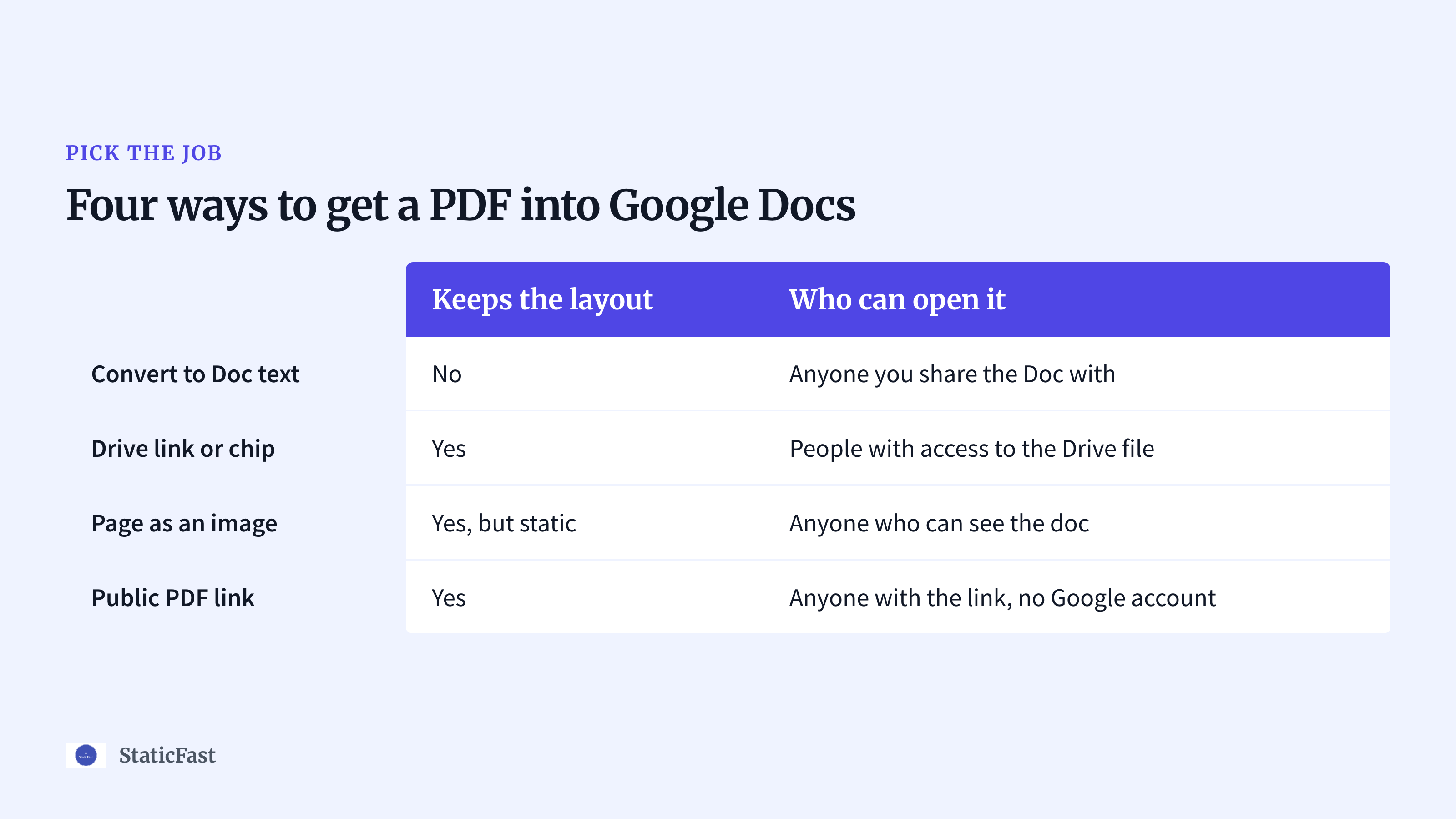
Pick convert when you need to quote, translate or rewrite the text: a scanned letter, an old handout, a form you want to retype. Pick a Drive link or chip when the people reading your doc are colleagues or classmates who already use Google. Pick an image when one page is the point, such as a chart or a signed page you want visible without a click. Pick a public link when the doc goes to people outside your school or company and you cannot control their Google accounts.
How to Convert a PDF into an Editable Google Doc
Google Docs cannot open a PDF from inside the editor, but Google Drive can convert one into a Doc. The PDF stays where it is, and Drive creates a new Google Doc next to it.
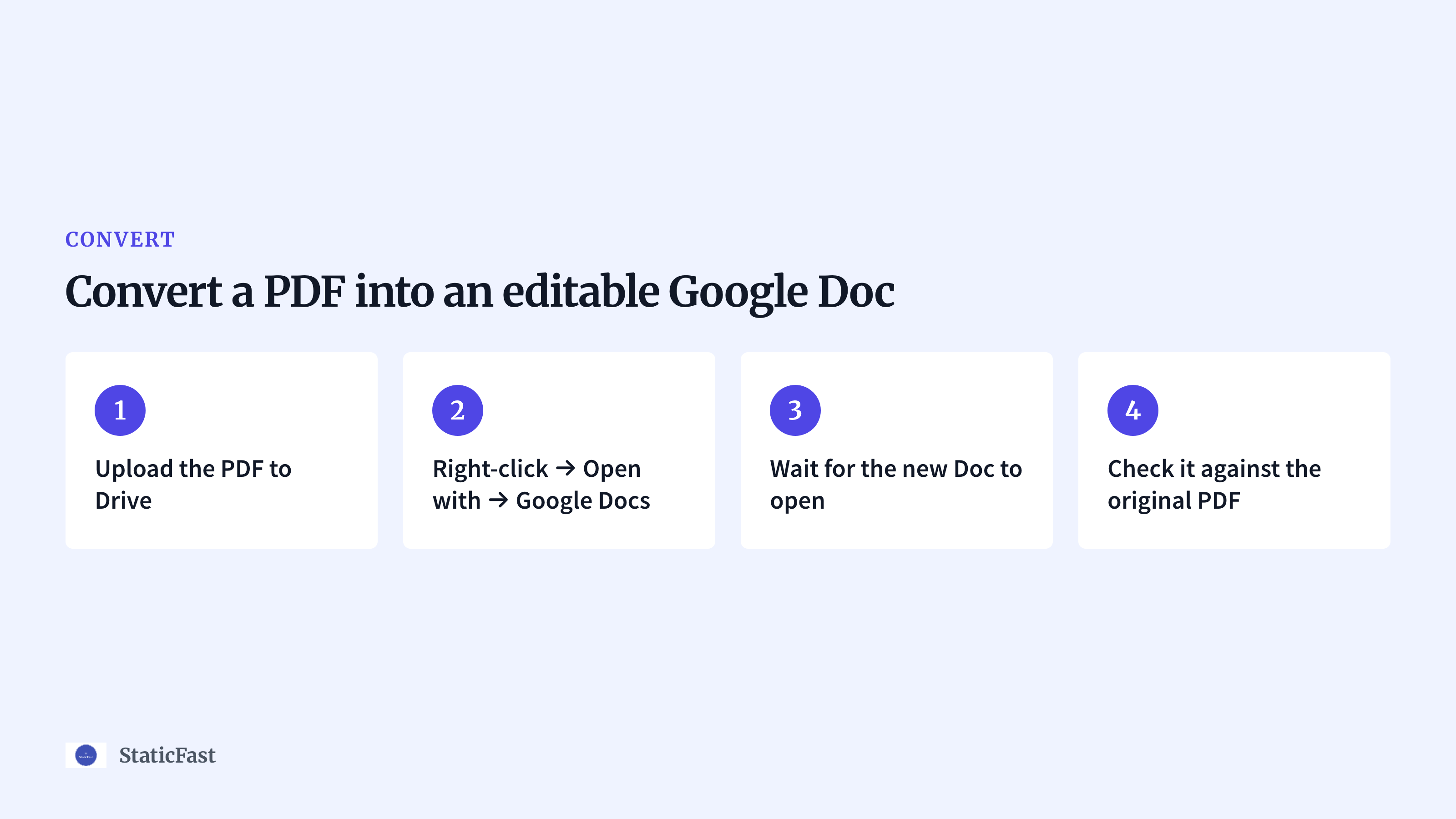
- Upload the PDF to Drive: In Google Drive, click
New → File uploadand pick the PDF. - Right-click → Open with → Google Docs: Right-click the uploaded PDF and choose
Open with → Google Docs. - Wait for the new Doc to open: Drive opens the result in a new tab. The file has the same name as the PDF, with a Docs icon.
- Check it against the original PDF: Read it side by side with the PDF before you send it anywhere. Conversion is a guess at the text, and it gets things wrong.
What survives and what breaks
The text survives. Headings, paragraphs and most bullet lists come through as text you can select and edit.
The layout does not. Columns collapse into one, tables often turn into loose lines of text, images may be missing or moved, and unusual fonts are replaced. A designed PDF such as a brochure or a résumé comes out as plain text with odd line breaks. For a scanned PDF, Drive has to recognise the text in a picture of a page, so a clean scan works far better than a phone photo at an angle.
If you need a Word file rather than a Google Doc, convert first and then use File → Download → Microsoft Word (.docx).
Upload the PDF to Google Drive
If you want the PDF itself in your doc rather than its text, this is where the insert route starts. The first step, upload the PDF to your Google Drive:
- Visit Google Drive from your browser.
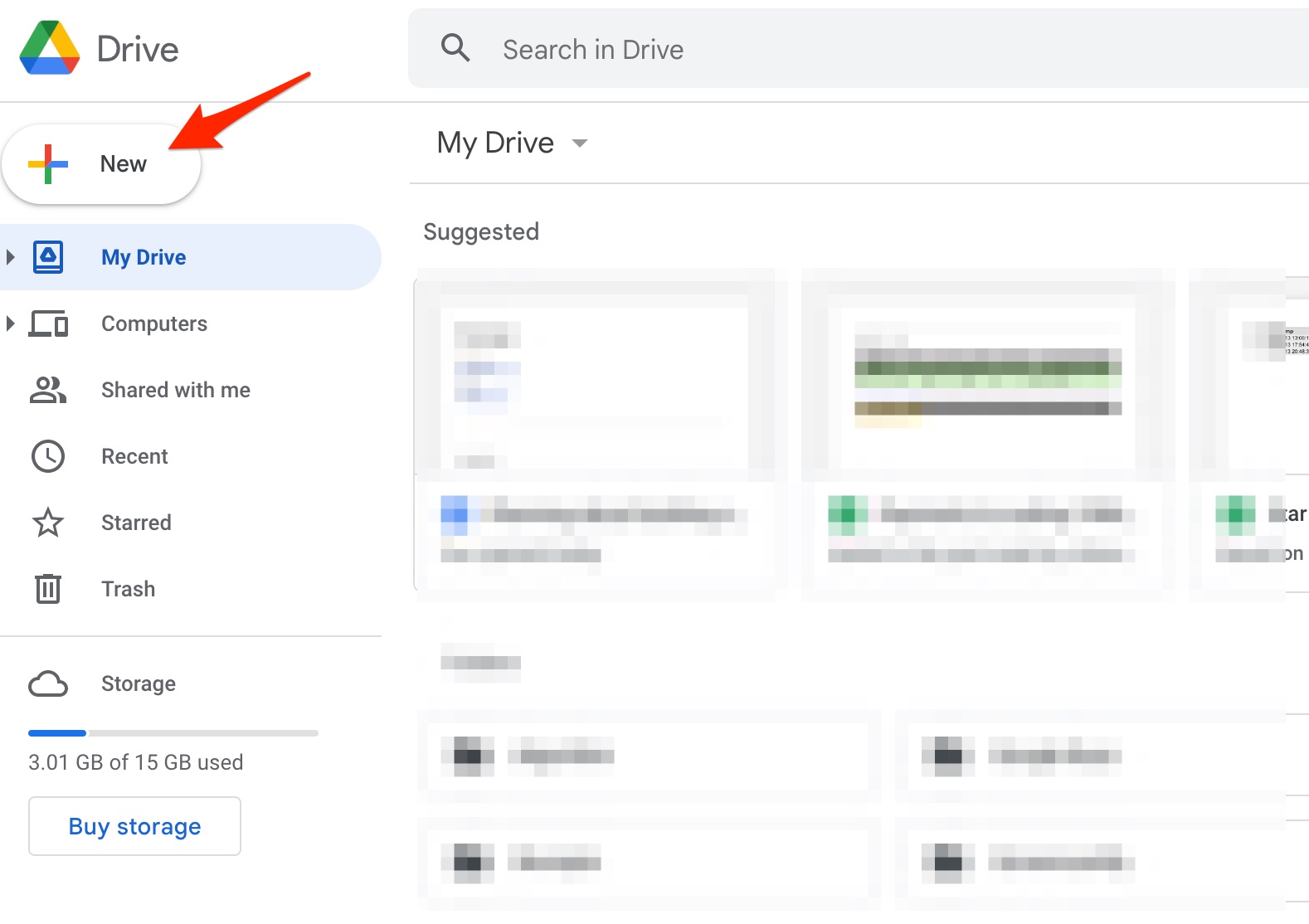
- Click the
Newbutton on the top left corner:
- Choose the
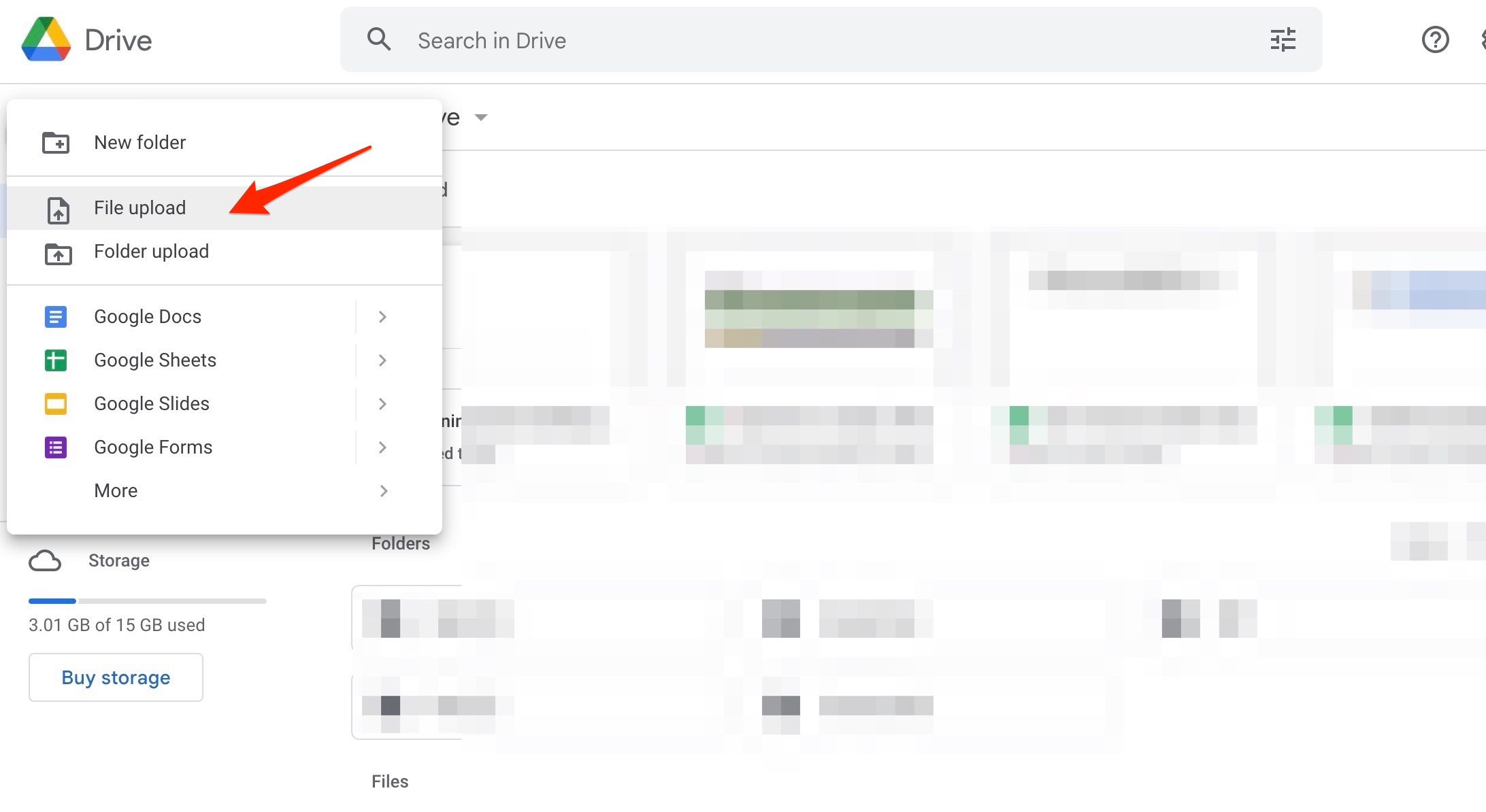
File uploadoption in the drop-down menu:
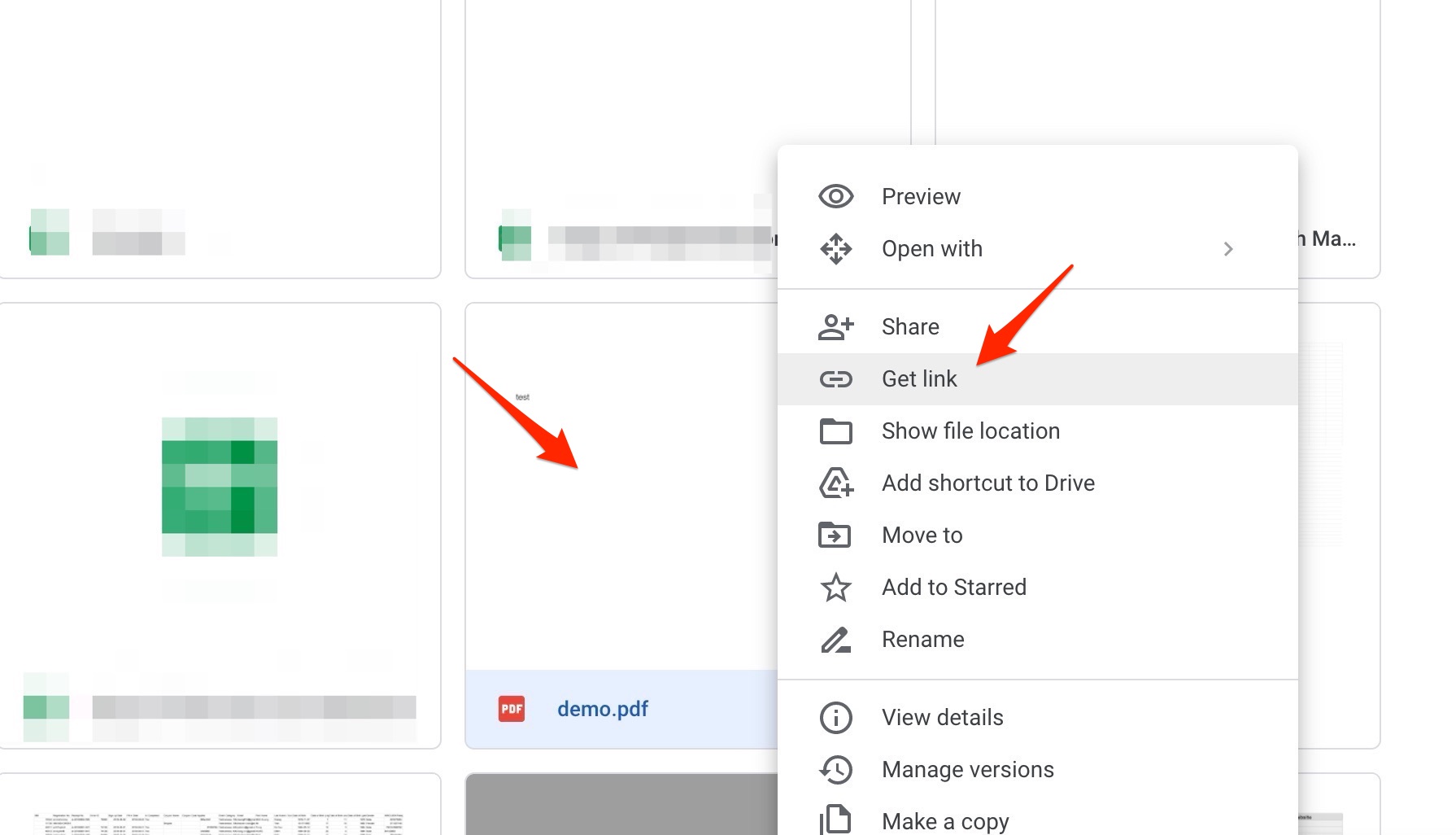
- Find the PDF uploaded and right click it and choose
Get link:
- Copy the link to your clipboard:

- Before you click
Done, checkGeneral access. It starts asRestricted, which means anyone you have not added by name gets a request-access page instead of the PDF. If the readers of your doc are not on the file, change it toAnyone with the linkand keep the role asViewer.
Attach the link to the Google Docs
Now switch back to your Google Docs page and paste the link at your desired place. You will see a preview of the PDF. If you click on it, it will give the option to turn this long ugly URL to a chip or internal link format:
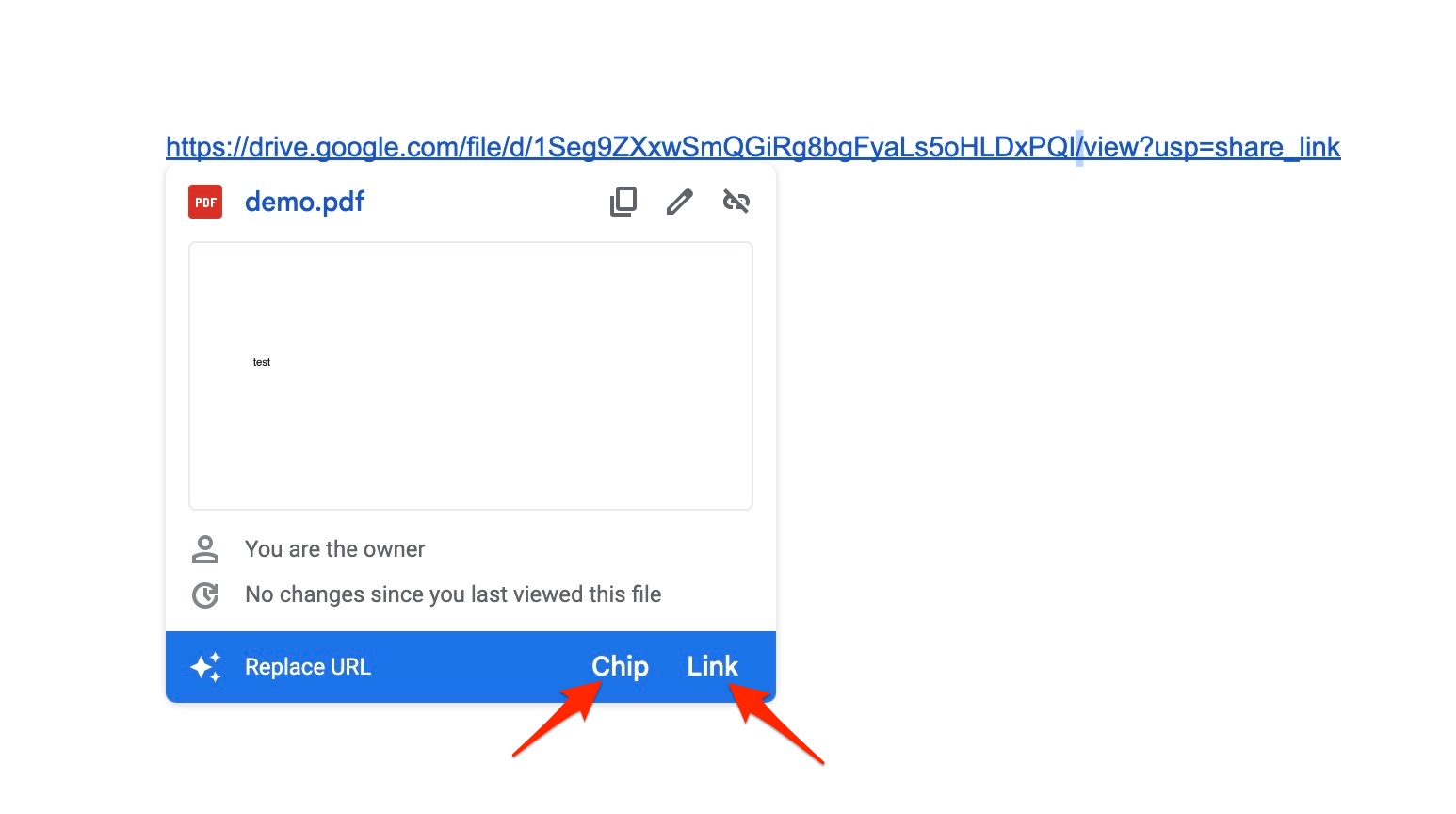
A chip shows the file name with a PDF icon, and hovering over it shows a preview of the first page. Link turns the URL into the file name as plain linked text.
There are two other ways to get the same result. To link a word you have already written, select it, choose Insert → Link (or press Ctrl + K, Cmd + K on a Mac) and paste the Drive link. To skip copying the link at all, type @ followed by the file name, and Docs lists matching files from your Drive; pick the PDF to drop it in as a chip.
Whichever you choose, the chip or link only works for people who can open the Drive file, so the General access setting above still decides who sees the PDF.
Show a PDF Page as an Image in the Doc
Google Docs inserts pictures, not PDFs, so the way to make a page visible without a click is to turn that page into an image first.
- On a Mac, open the PDF in Preview, go to the page, and choose
File → Export. Set the format to PNG or JPEG and save. Preview exports one page at a time. - On Windows, open the PDF, zoom so the page fills the screen, and capture it with the Snipping Tool (
Windows + Shift + S). - In Google Docs, choose
Insert → Image → Upload from computerand pick the image.
This works well for a single chart, a certificate or a signed page. It is a poor fit for a long document: each page is a separate image, the text in it cannot be searched or copied, and the picture does not change when the PDF does. The same trick is how you get a PDF into Google Slides, where it is often the better choice.
When the PDF Needs Its Own Public Link
A Drive link is fine when everyone reading your doc lives in Google Workspace with you. It gets awkward when the doc goes to parents, clients or the public. They land on Drive's viewer, sometimes get asked to sign in, and if you ever upload a corrected PDF as a new file, the link in your doc still points at the old one.
In that case, host the PDF at its own address and paste that address into the doc. With StaticFast, you drag and drop the PDF to the uploader and you get a public link and a QR code. Readers open it in the browser with no Google account and no download, and when you re-upload a new version, the link and QR code stay the same, so the doc never needs editing. It hosts the PDF, it does not convert it, so if you need the words inside the doc, use the convert route above. There are more ways to do this in our guide to uploading a PDF to a URL.
FAQs
Q: How do I upload a PDF document to Google Docs?
A: You upload it to Google Drive, not to Docs. In Drive, click New → File upload. From there, either right-click it and choose Open with → Google Docs to convert it, or copy its link and paste it into your doc.
Q: How do I make my Google Doc into a PDF file?
A: Open the doc and choose File → Download → PDF Document (.pdf). The PDF keeps the doc's layout, and the original Google Doc is not changed.
Q: How to make a PDF a doc?
A: Upload the PDF to Google Drive, right-click it and choose Open with → Google Docs. That gives you an editable Google Doc. For a Word document, open that Doc and choose File → Download → Microsoft Word (.docx). Check the result against the PDF, because columns, tables and images rarely convert cleanly.
The end
Now you have successfully uploaded PDF to Google Docs using a workaround. If the same PDF also needs to live on your website, see our guide to hosting a PDF on your website.