
How to Upload PDF to Google Slides

Lina
Chief Editor
If you are using Google Slides to make a presentation, you may have noticed that you not directly upload a PDF to the services.
A few workarounds are available if you really need to upload PDF to Google Slides.
Convert PDF to image
You can upload PDF files as image files. The first step is to convert them to JPG format. There are several tools that can help you do this, in this tutorial, we will use a free online service: https://pdftoimage.com/.
Upload your PDF to https://pdftoimage.com/ and you will get a image instantly:
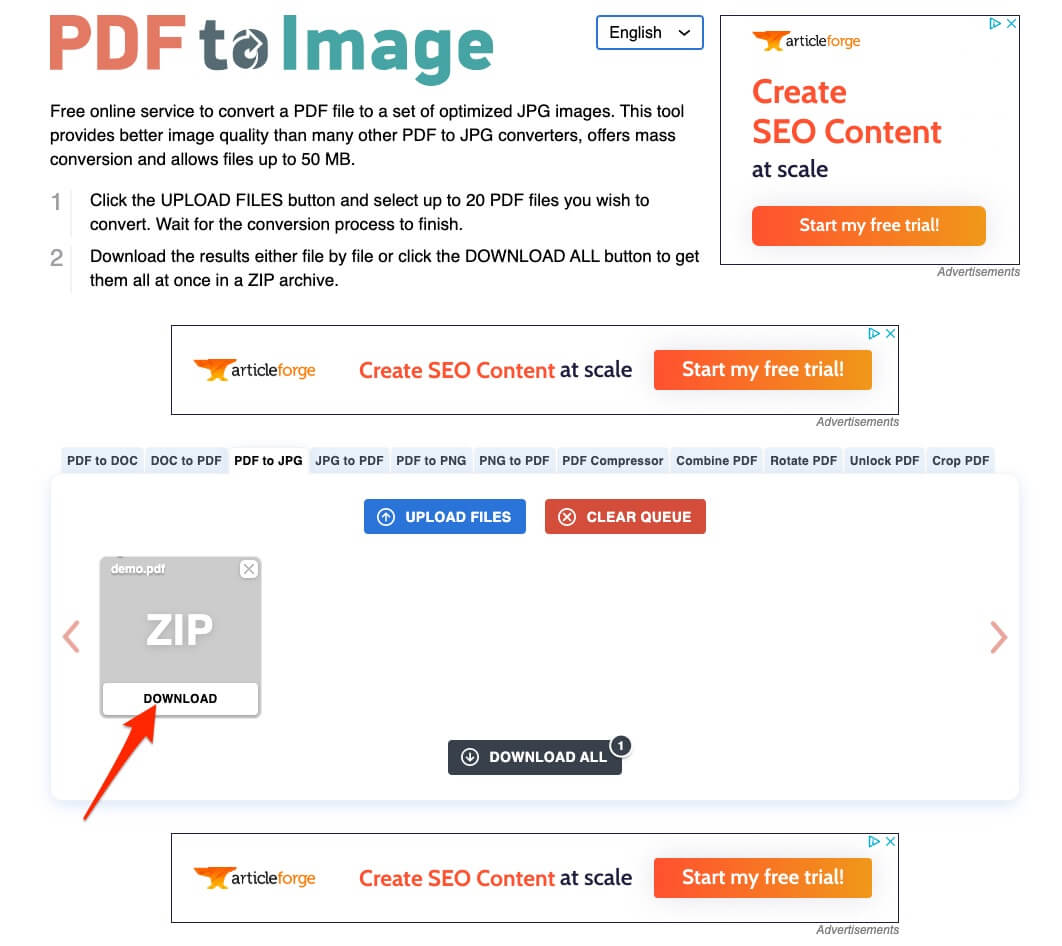
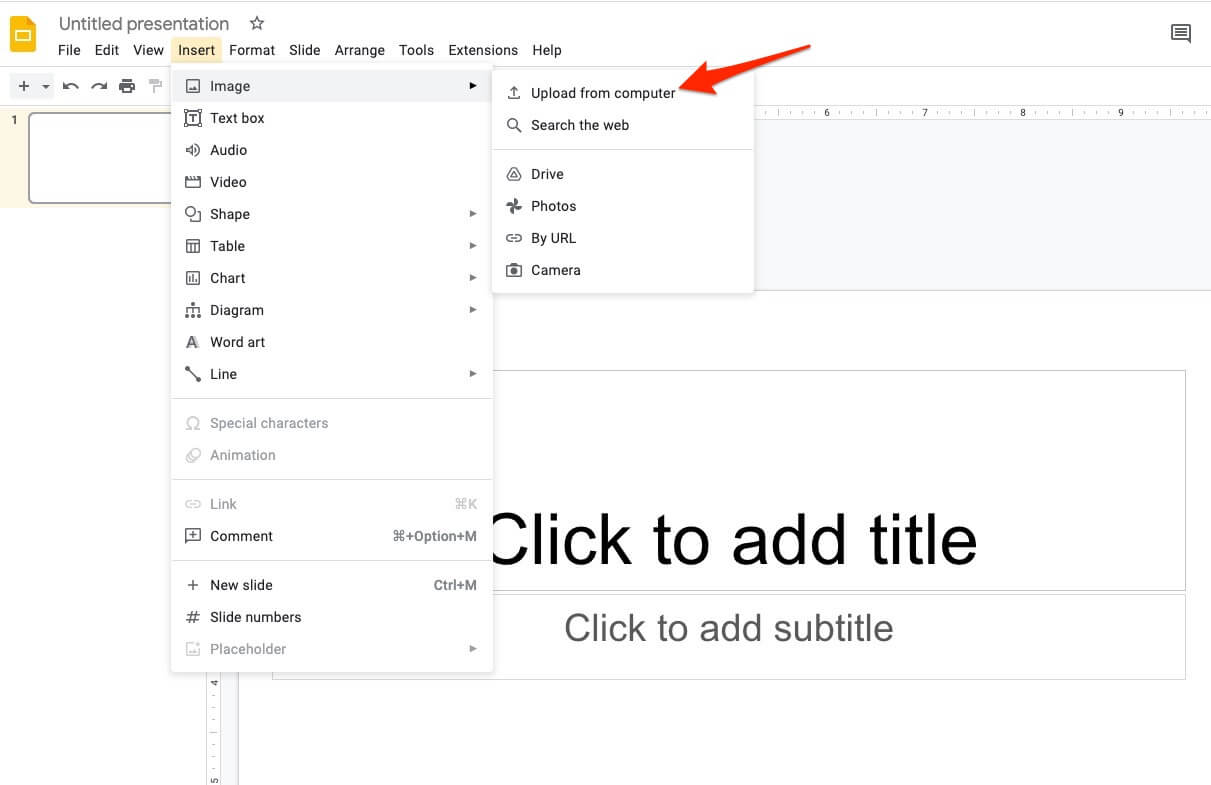
After you have converted your PDF to image file. Open your Google Slides and You will see a menu bar at the top of your screen with a variety of options.
To add the image, click the Insert -> Image -> Upload from computer option. This will allow you to upload the image file:
Upload to 3rd-party service
You can also upload the PDF to a 3rd-party storage and paste the link to the PDF in your Google Slides.
We will show you two 3rd-party options: Google Drive and StaticFast.
Google Drive
This online storage service lets you upload and share all kinds of documents. One can create and edit a document, attach it to an existing one, and store it in a cloud. Using these features can save a lot of time.
Upload the PDF to your Google Drive:
- Open Google Drive from your browser.
- Click the
Newbutton on the top left corner:
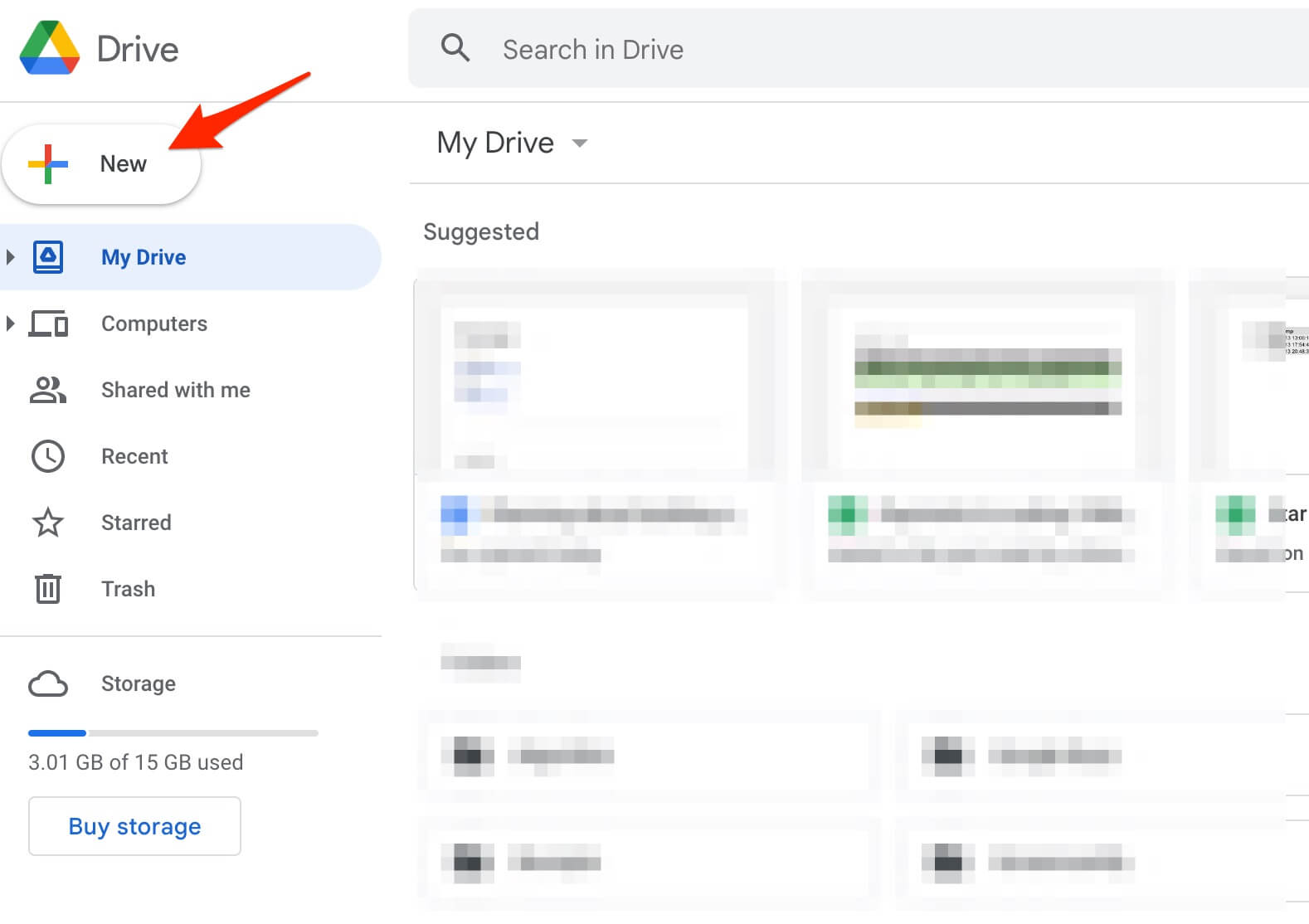
- Click the
File uploadoption in the drop-down menu:
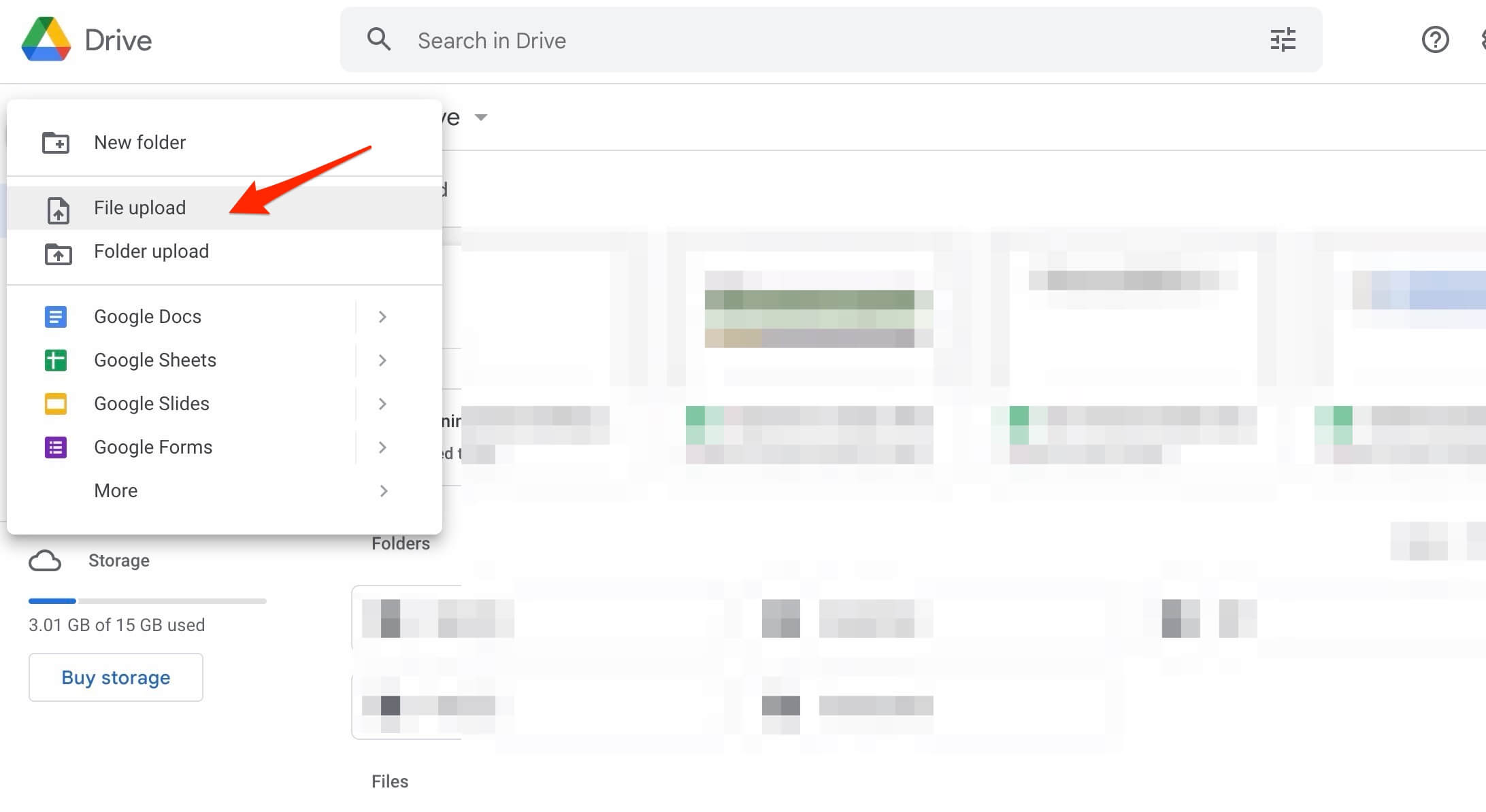
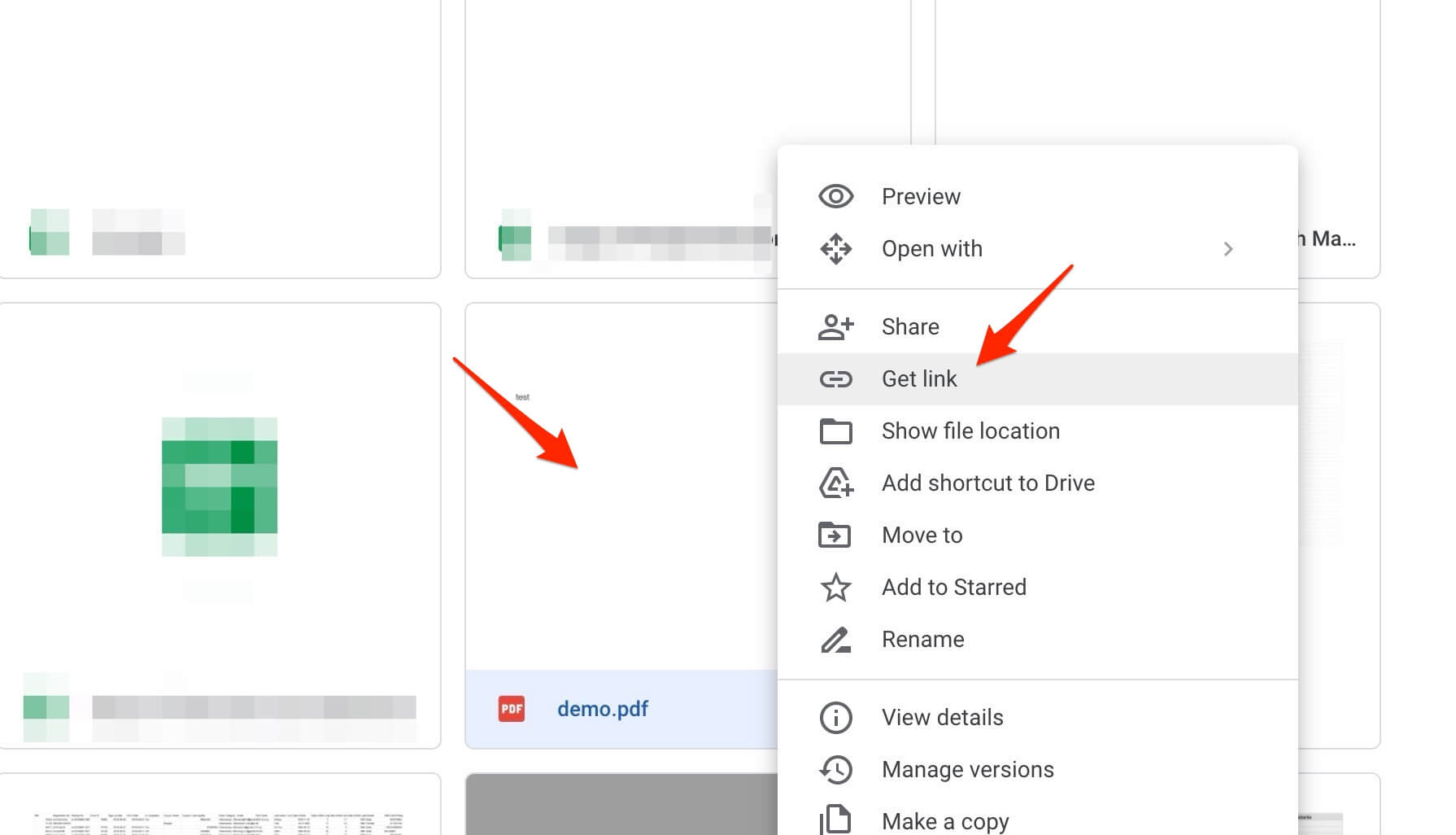
- Right click the PDF uploaded and choose
Get link:
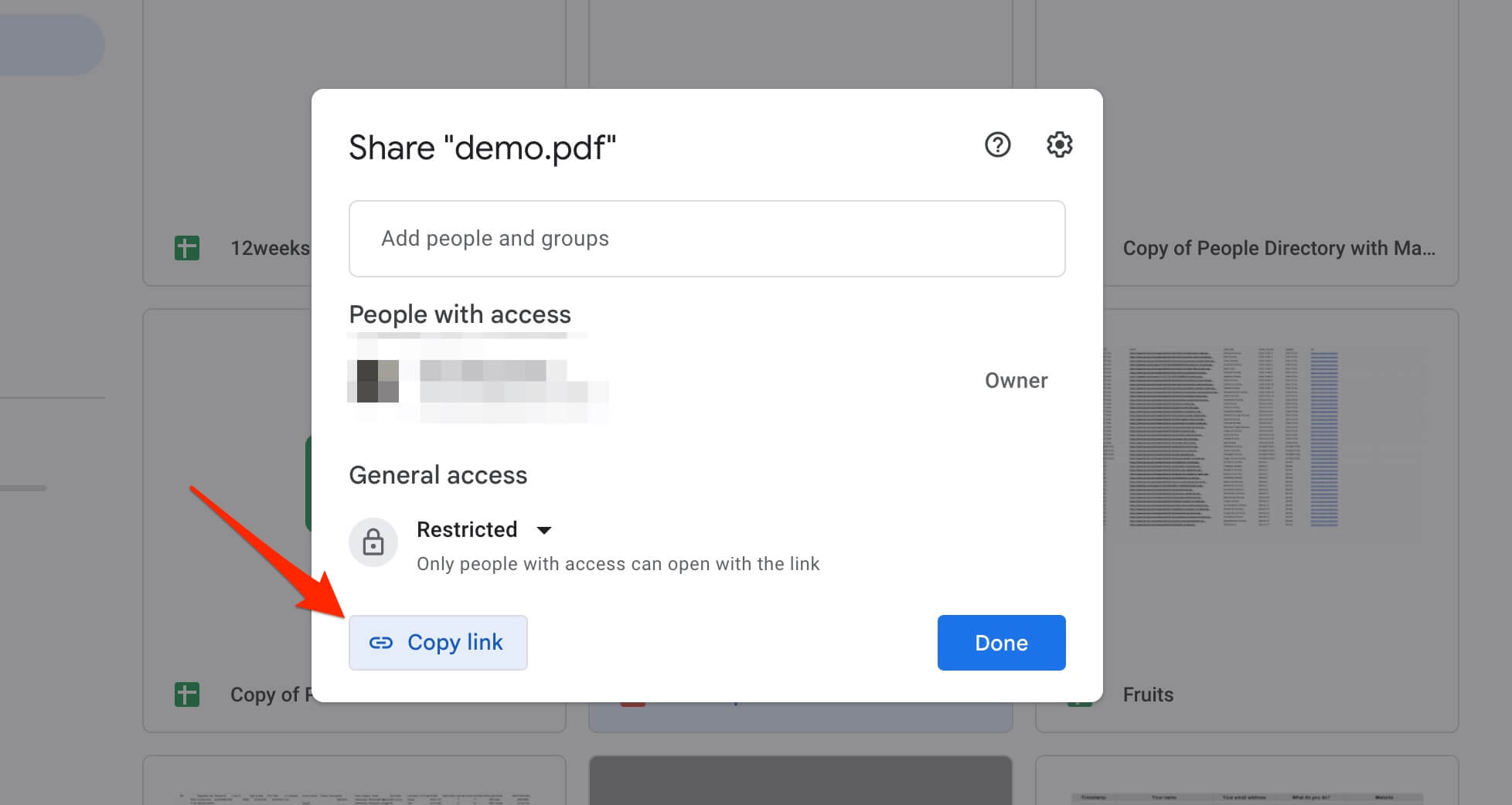
- Copy the link to your clipboard:
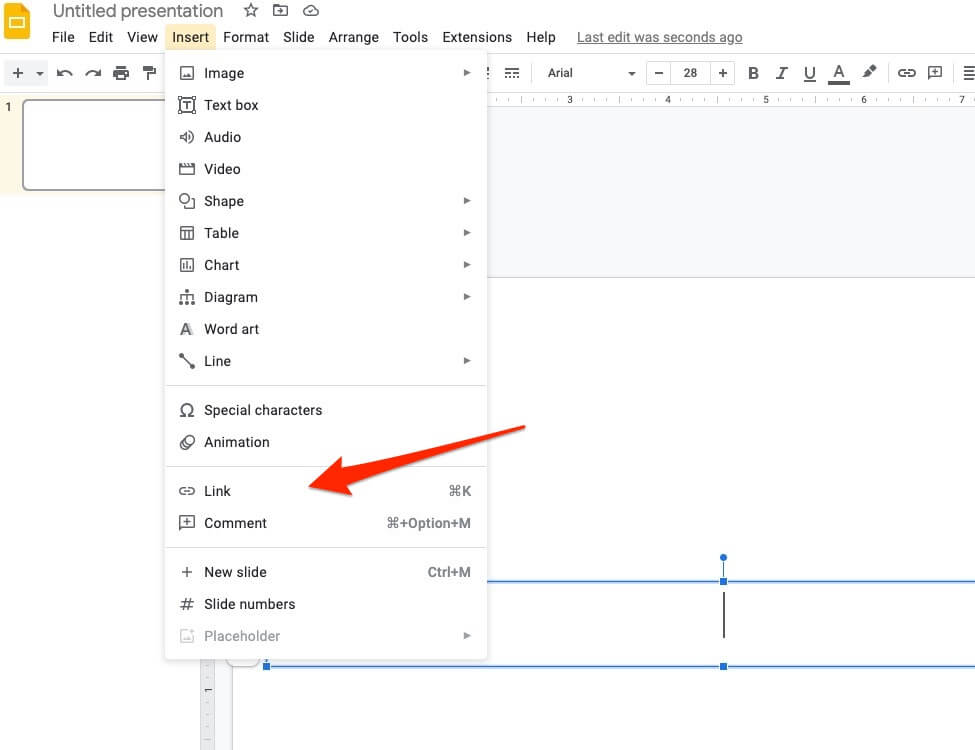
- You will see a menu bar at the top of your screen with a variety of options. To add the Google Drive link, click the
Insert Linkoption.
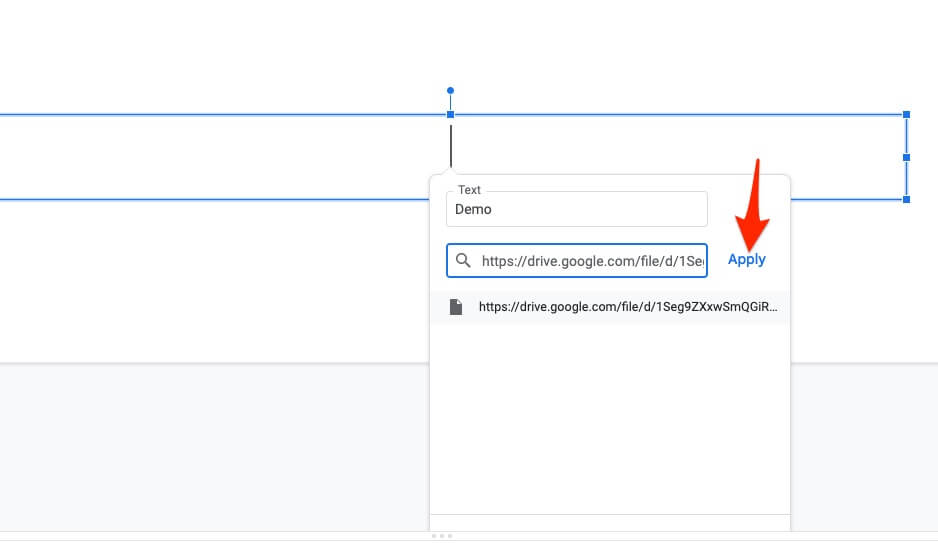
- This will bring up a dialogue box with an
Applybutton. Paste the Google Drive link here and clickApply:
StaticFast
If you need something even simpler than Google Drive. You can try out https://staticfast.com/.
- Click the uploader and you will get a URL instantly:

- Paste the link to your Google Slides similar to the
Google Drivecase.
The end
Google Slides are great for presentation. However it does not allow us to upload a PDF directly. In this post, we share some workarounds to get your PDF uploaded to Google Slides.