
How to Combine PNG into One PDF: A Step-by-Step Guide

Lina
Chief Editor
Combining PNG images into a single PDF is an excellent way to organize and share multiple files in a professional, compact format. Whether you're creating a presentation, compiling scanned documents, or sharing design drafts, knowing how to combine PNG into one PDF is a must-have skill.
In this guide, we’ll explore the easiest ways to merge PNG files into a PDF using various tools and platforms.
How to Combine PNG into One PDF
Here are the best methods to combine PNG images into a single PDF on different devices:
1. Using Built-In Tools on Windows
Windows users can merge PNG images into a PDF without downloading additional software.
- Organize Your PNG Files: Place all the PNG files you want to combine into a single folder and arrange them in the desired order.
-
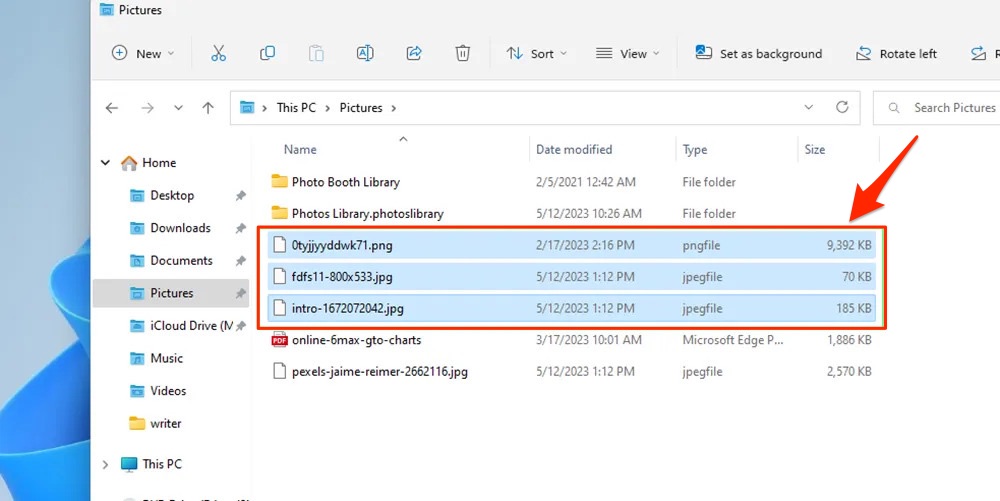
Select the Files: Highlight all the PNG files you wish to include.
-
Right-Click and Choose “Print”:
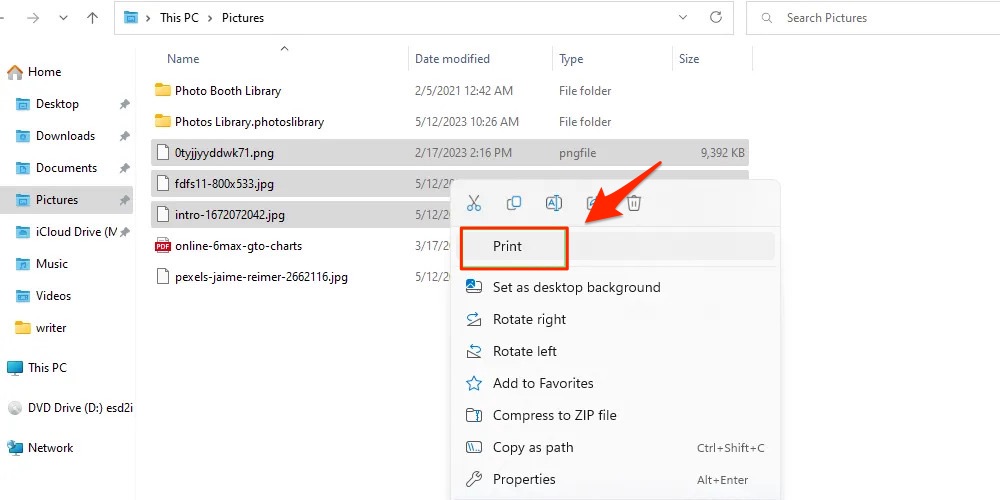
- In the Print dialog box, select Microsoft Print to PDF as your printer.

- In the Print dialog box, select Microsoft Print to PDF as your printer.
-
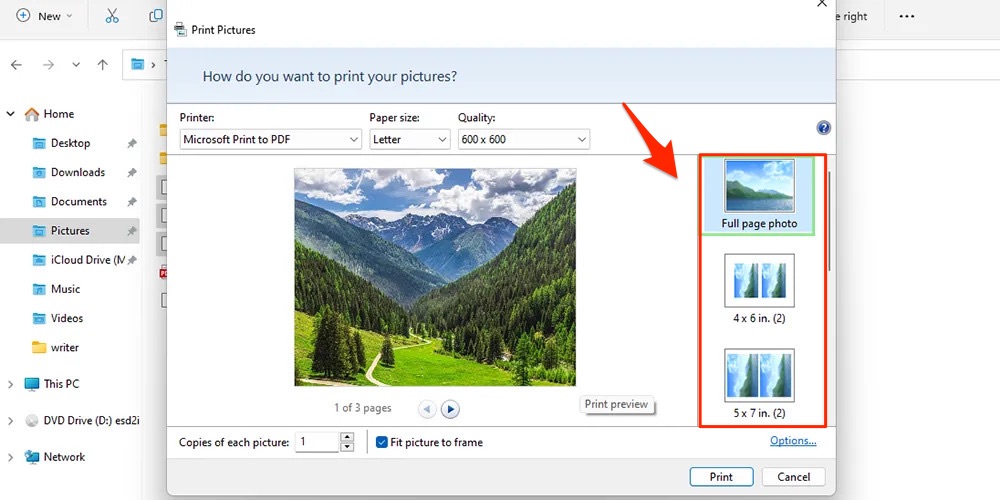
Adjust Print Settings: Set the paper size, layout (portrait or landscape), and margins.
-
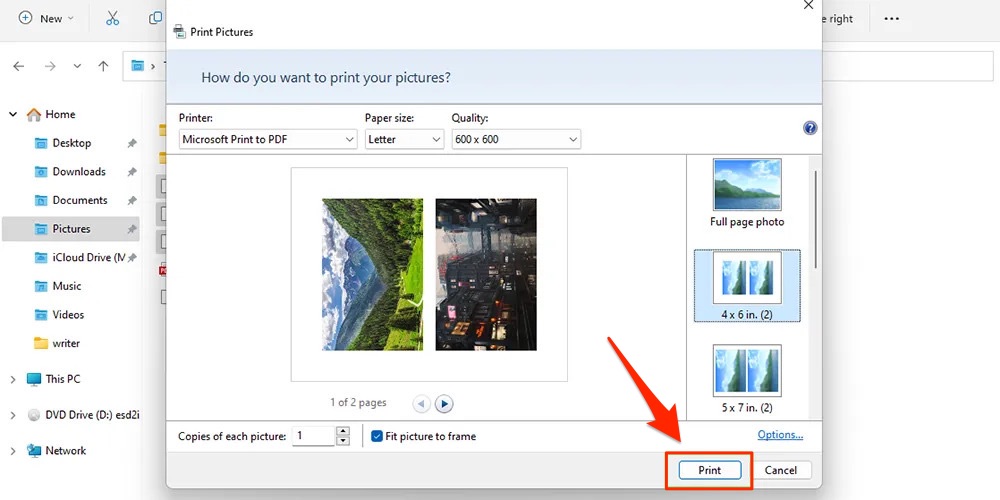
Save the PDF: Click Print, name your file, and choose a location to save it.
2. Using Preview on macOS
Mac users can easily combine PNG files into a PDF using the Preview app.
-
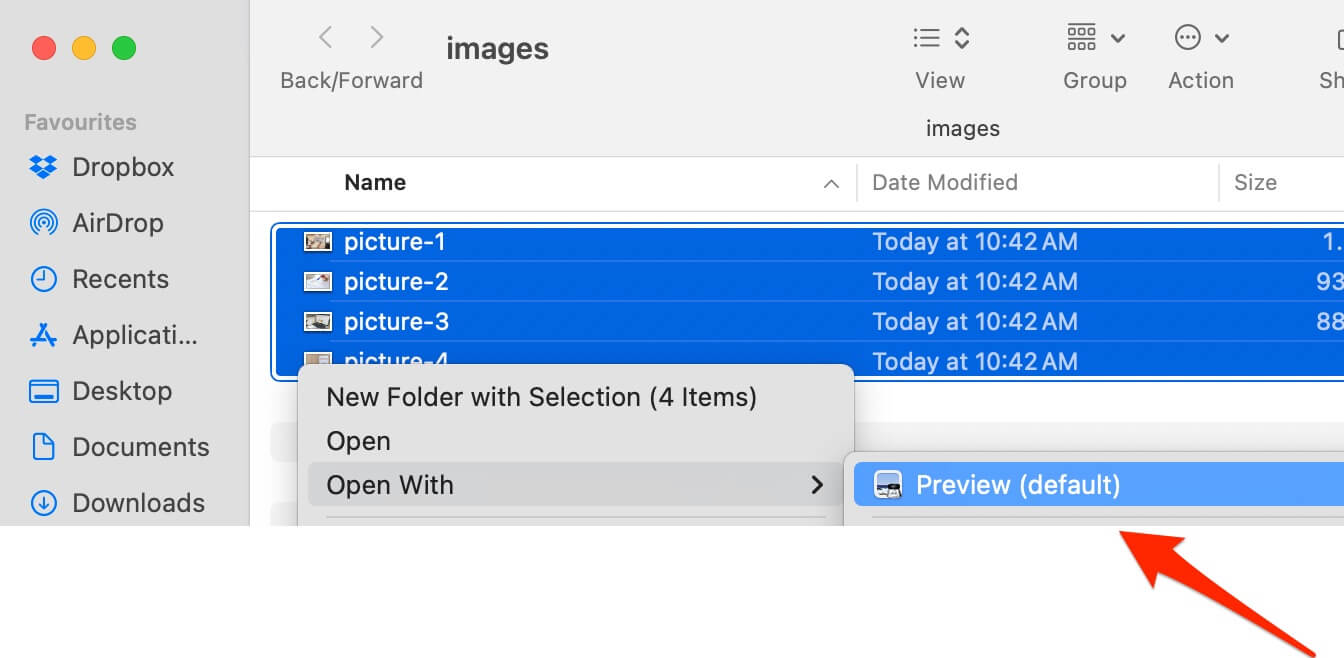
Open PNG Files in Preview: Select all the PNG files, right-click, and choose Open With > Preview.
-
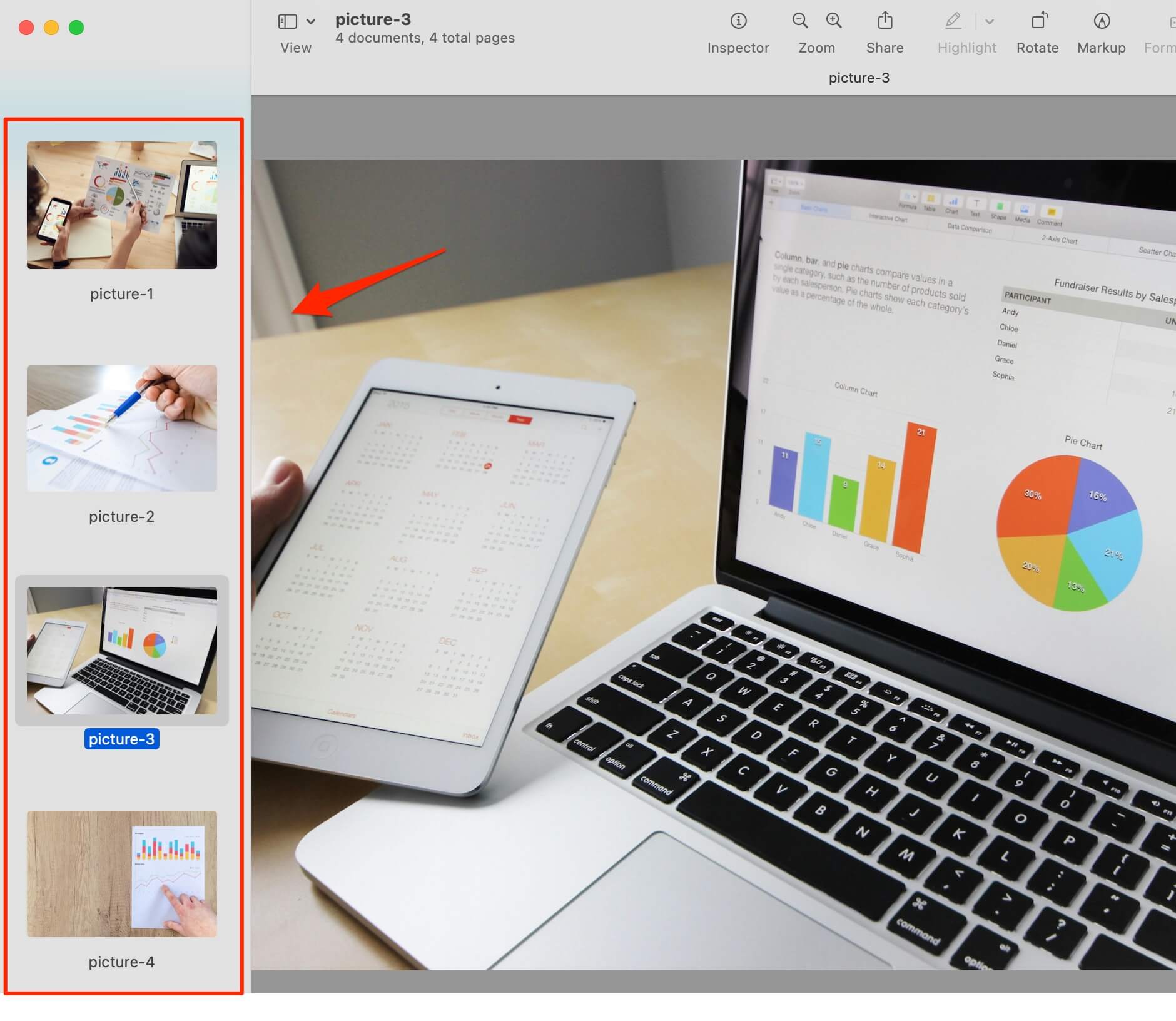
Reorder Images: Drag and drop the thumbnails in the Preview sidebar to arrange them in the desired order.
-
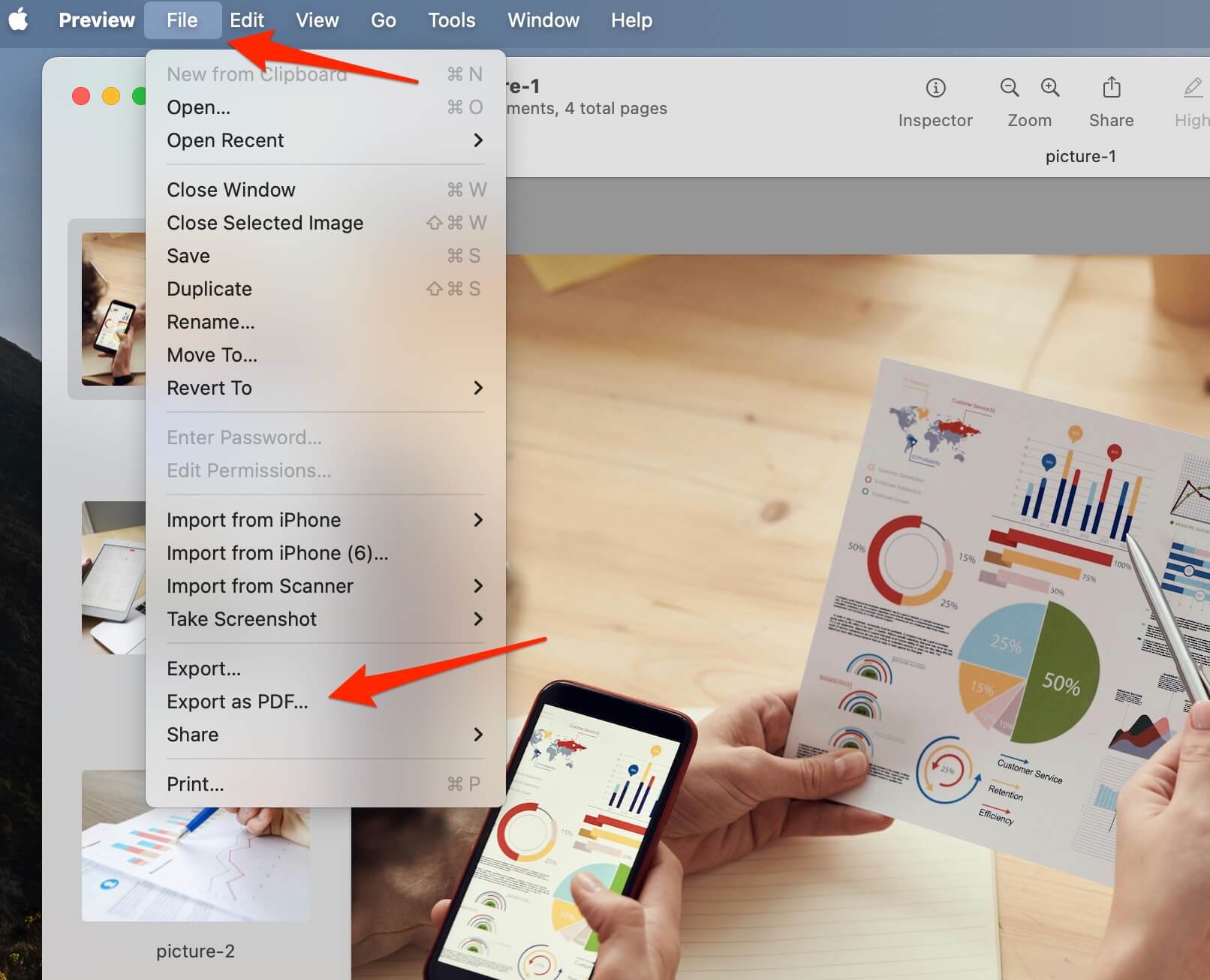
Export as PDF:
- Go to File > Export as PDF.
- Name your file and select a save location.
3. Using Online Tools
Online tools provide a quick and convenient way to combine PNG into one PDF without installing software.
Steps to Combine PNG into a PDF Using StaticFast:
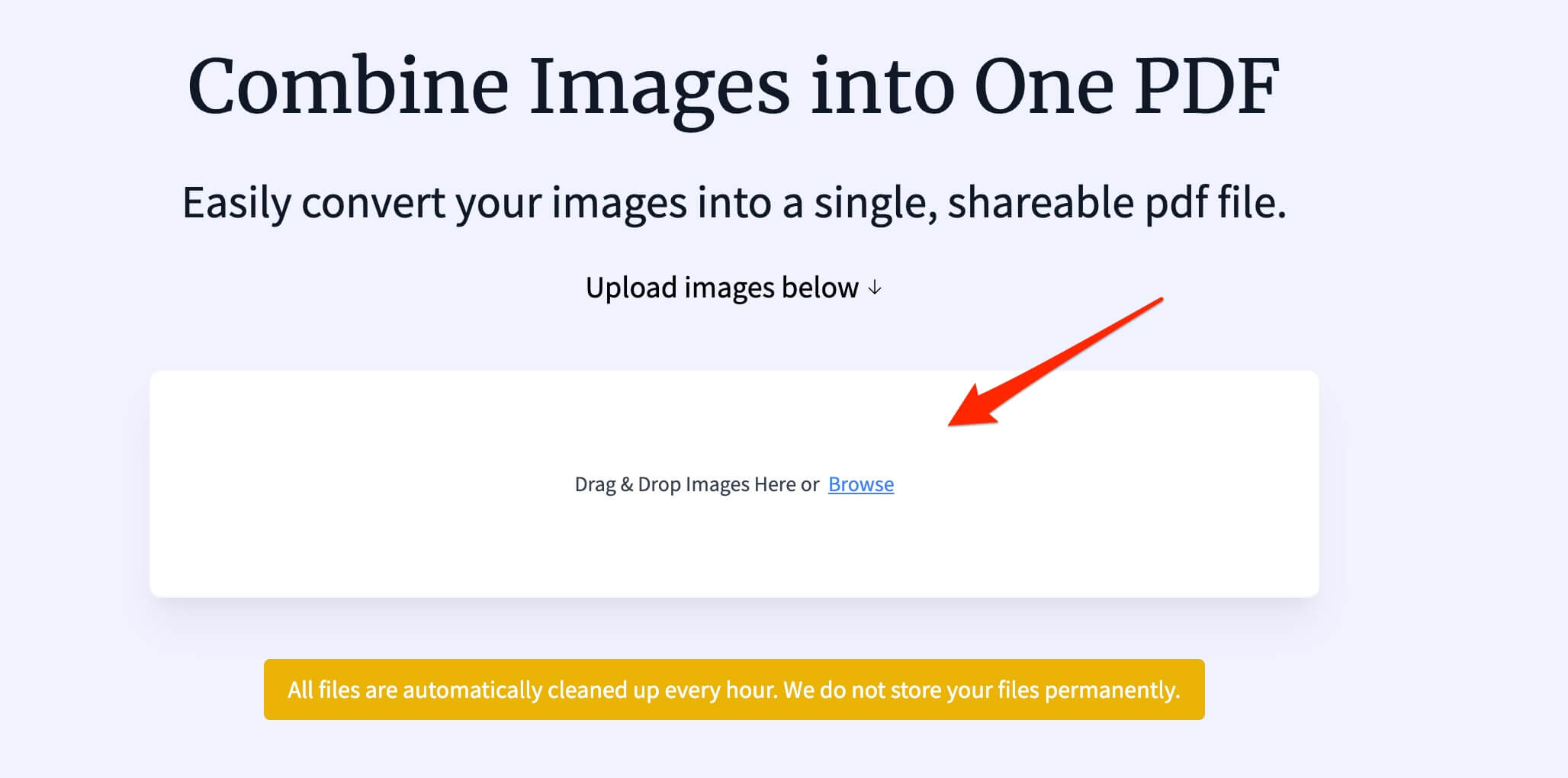
- Visit StaticFast PNG to PDF Combiner.
- Click the browse button and select the images you want to merge.
- Arrange the images in your preferred order by dragging and dropping them.
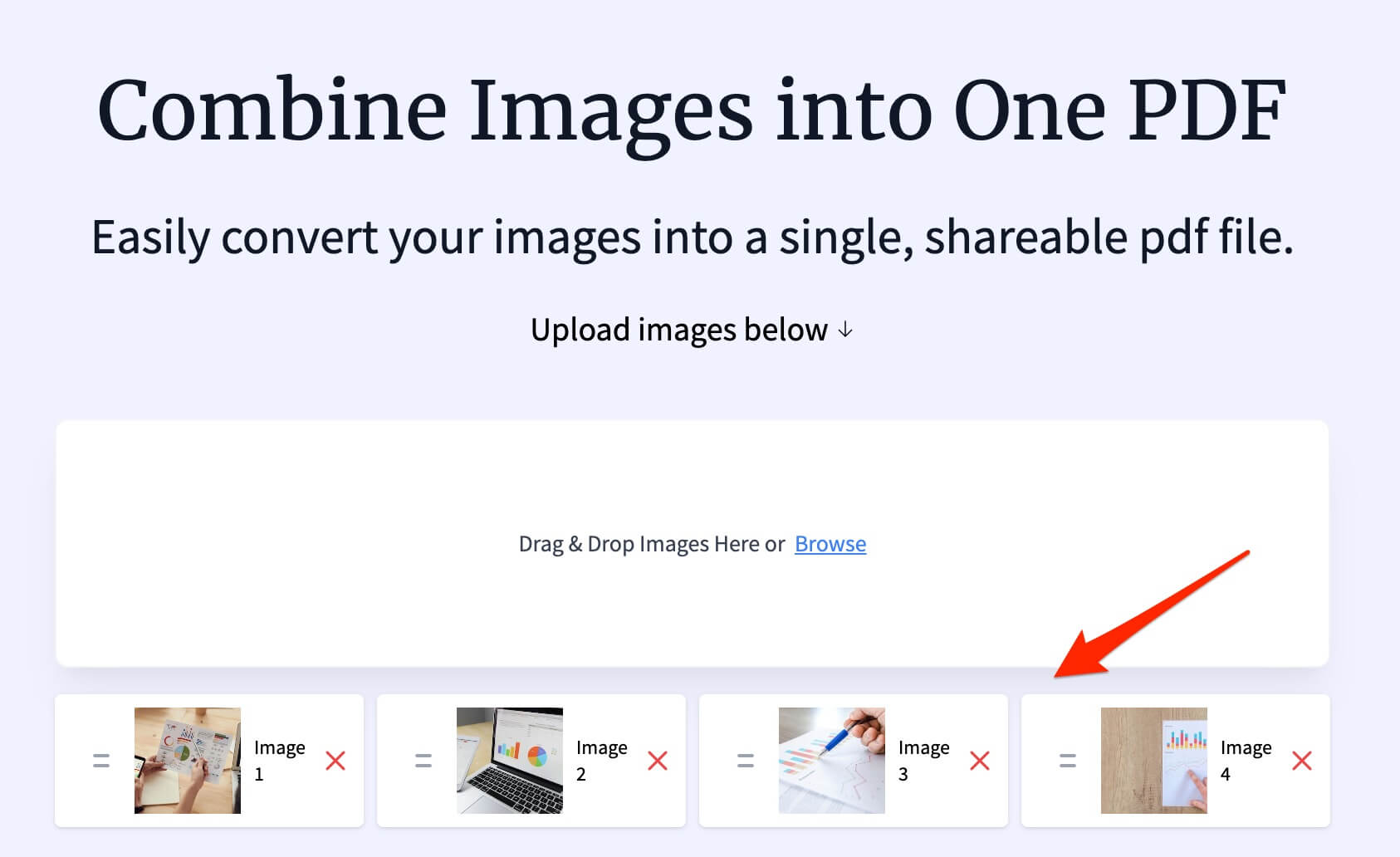
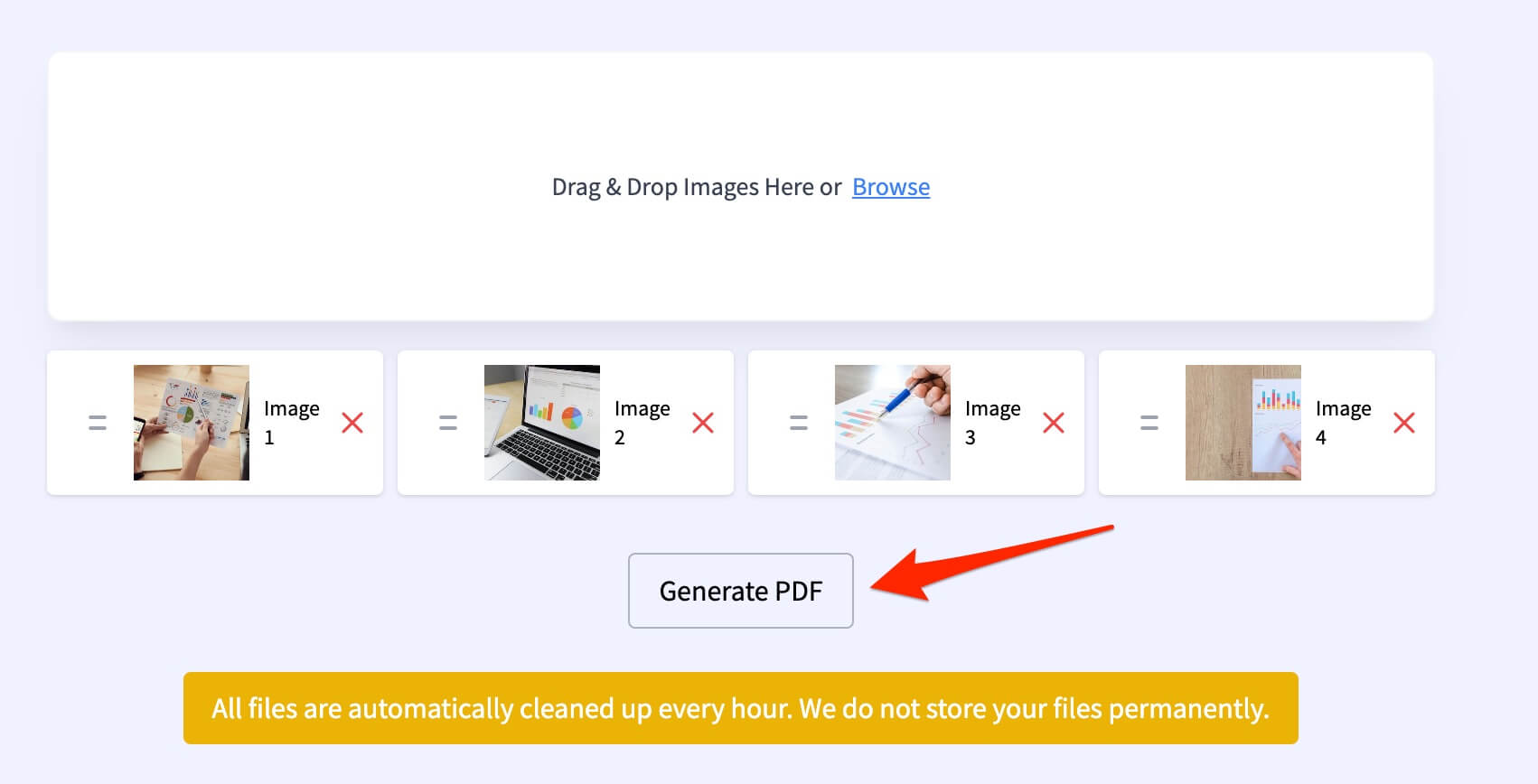
- Click Generate PDF to generate the PDF.
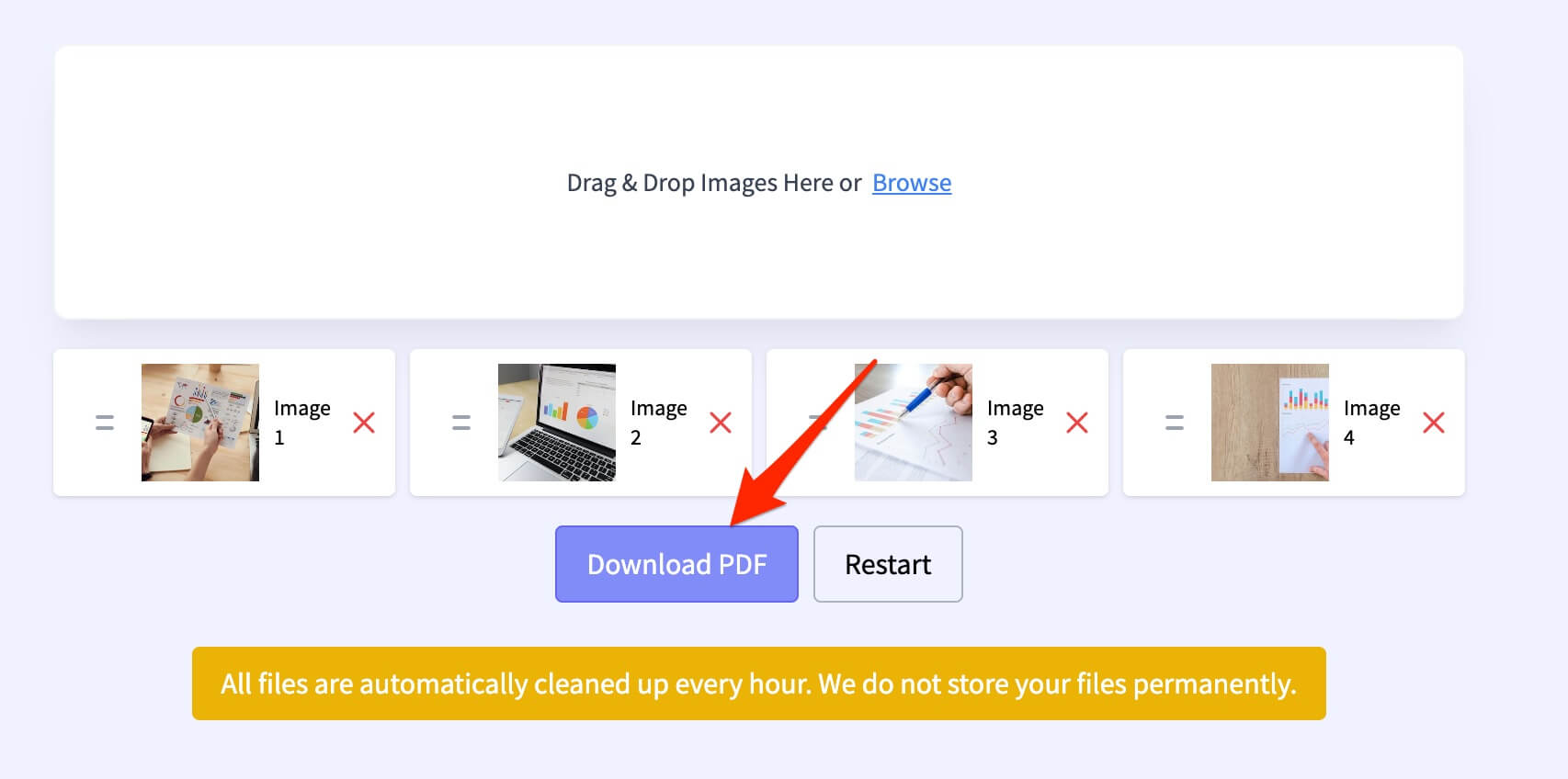
- Download the final PDF file to your device.
Why Combine PNG into a PDF?
- Convenience: A single PDF file is easier to share and manage than multiple PNG files.
- Professional Appearance: PDFs provide a polished format, ideal for official or creative purposes.
- Universal Compatibility: PDF files are compatible across all devices and operating systems.
Tips for Creating a High-Quality PDF
- Optimize PNG Files: Use high-resolution PNG images for better clarity in the PDF.
- Compress the PDF: If the PDF is too large, use a compression tool to reduce its size.
- Double-Check Image Order: Ensure the images are arranged correctly before finalizing the PDF.
FAQs
Q: Can I combine PNG files into a PDF on my phone?
A: Yes, mobile apps like Adobe Scan or online tools like StaticFast can help you combine PNG files into a PDF on your smartphone.
Q: Are online tools safe for sensitive images?
A: Reputable platforms delete files after processing. For sensitive data, use offline methods.
Q: Can I edit the PDF after combining PNG files?
A: Yes, you can use tools like Adobe Acrobat or free options like PDFescape to edit the PDF.
Conclusion
Knowing how to combine PNG into one PDF is a straightforward and efficient way to organize your files. Whether you're using built-in tools or online platforms, the methods outlined in this guide will help you create professional-looking PDFs in no time.
For more tips and tutorials on file management, explore our other helpful guides!